Skip to content

How to Scan in Styku Studio

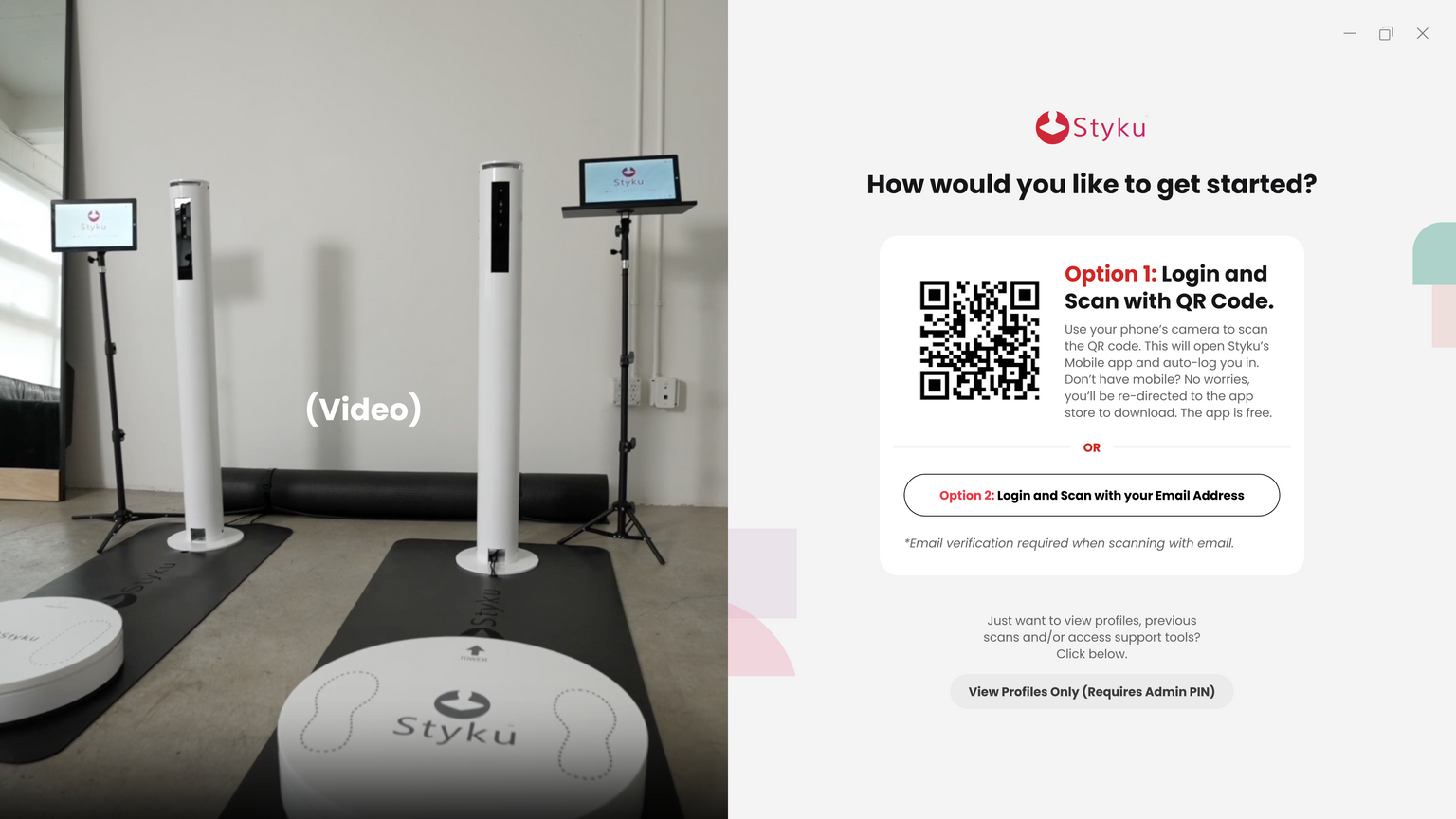
Important Note: In Styku Studio, the client needs to log in to their scan profile prior to scanning. This is not the scanner administrator; this is the person who will be scanned.

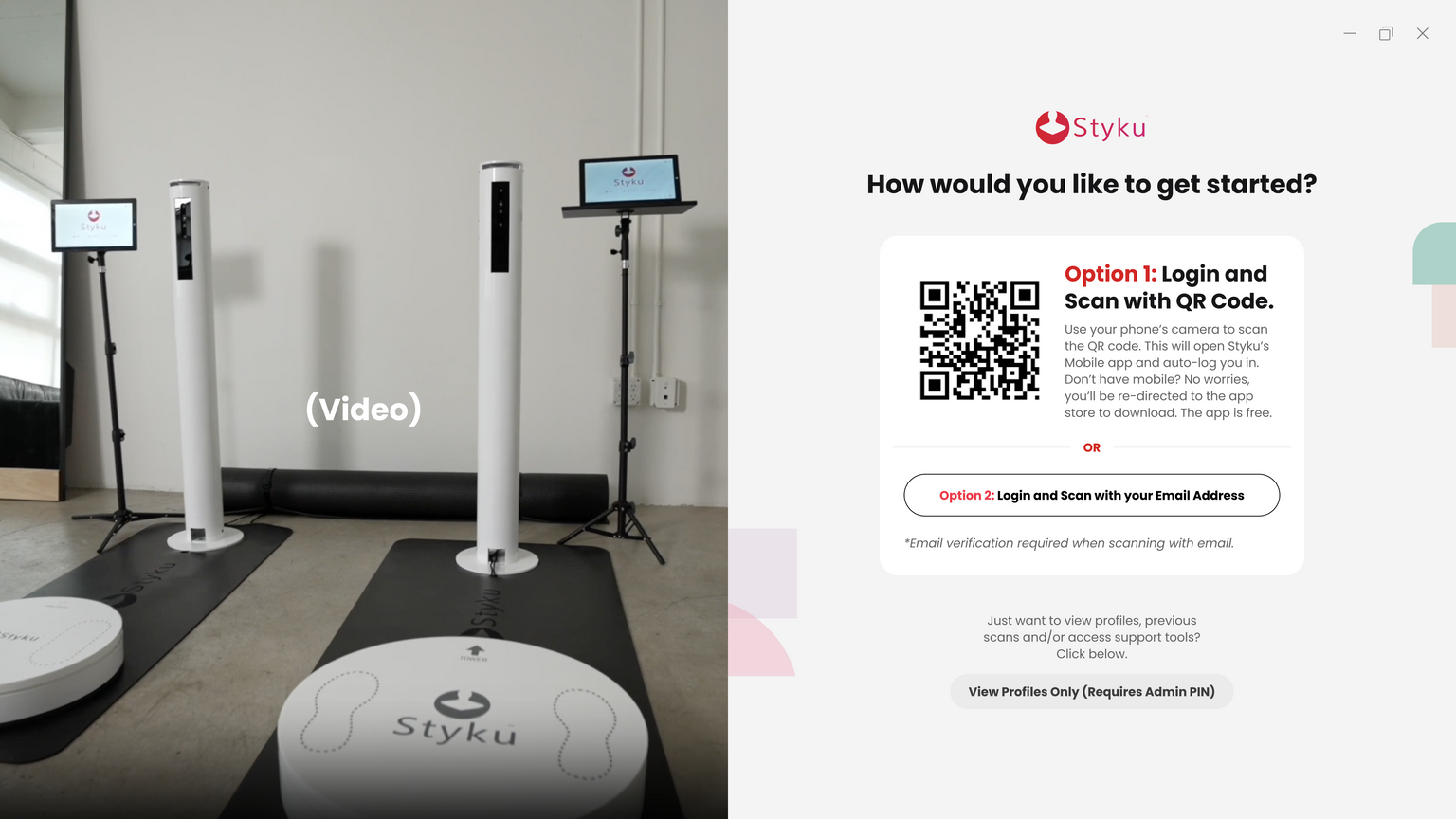
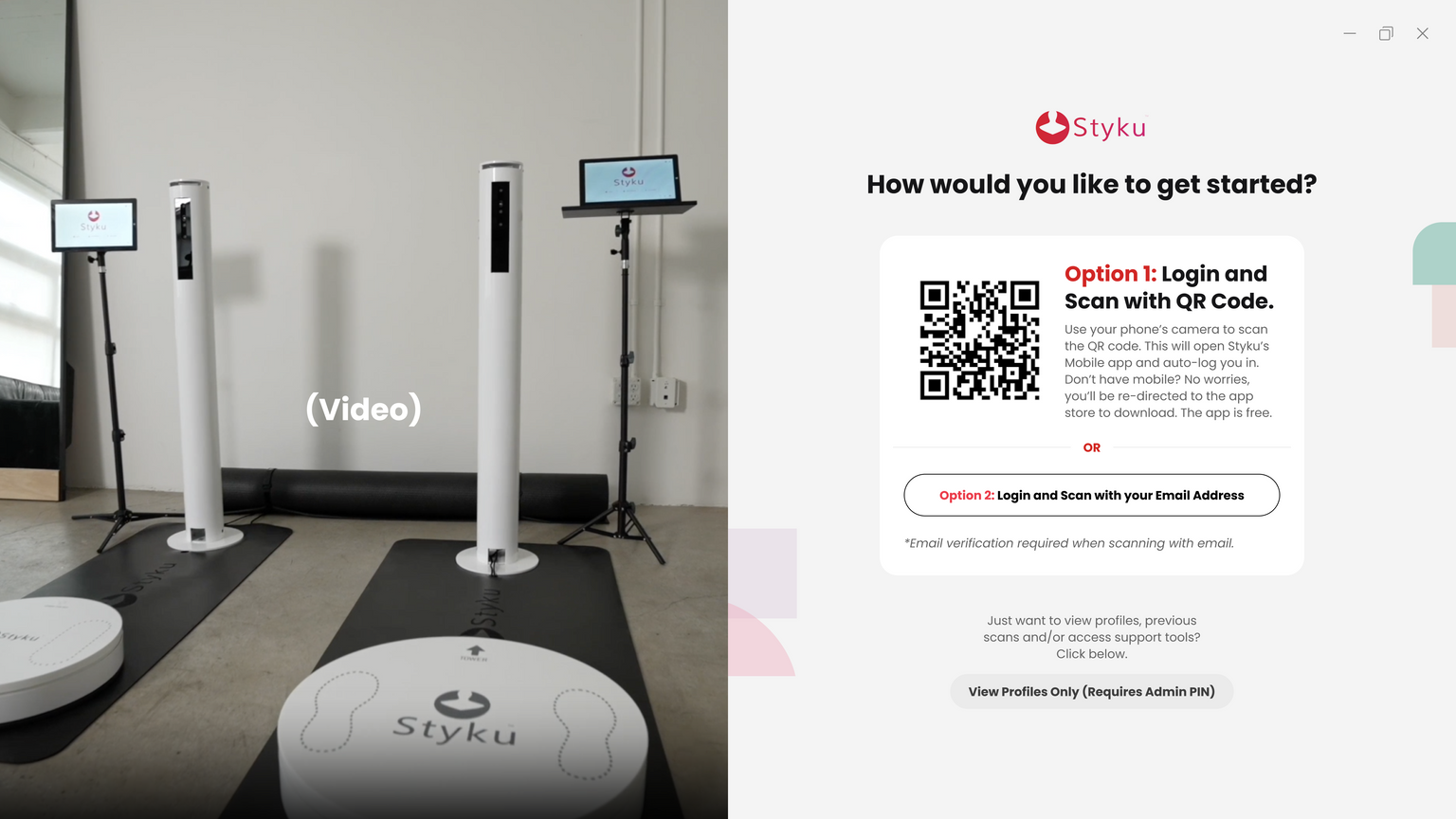
There are two options for scanning: Scan Using QR Code, and Scan Using Email.

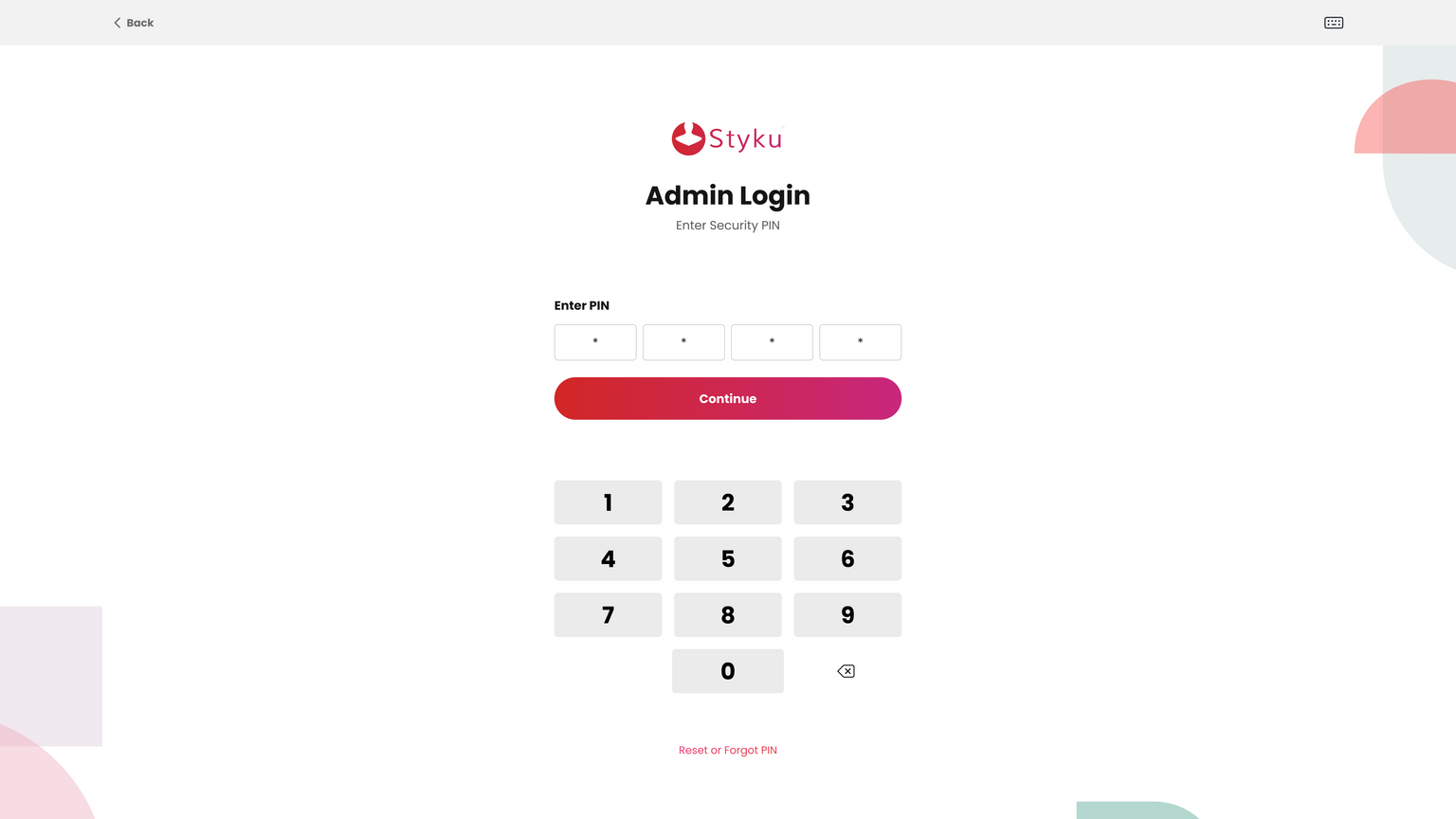
To view profiles and set up the scanner, log in to your PIN code using the button near the bottom of the window.

Client scans QR code with phone camera
(Recommended: download app before scanning)


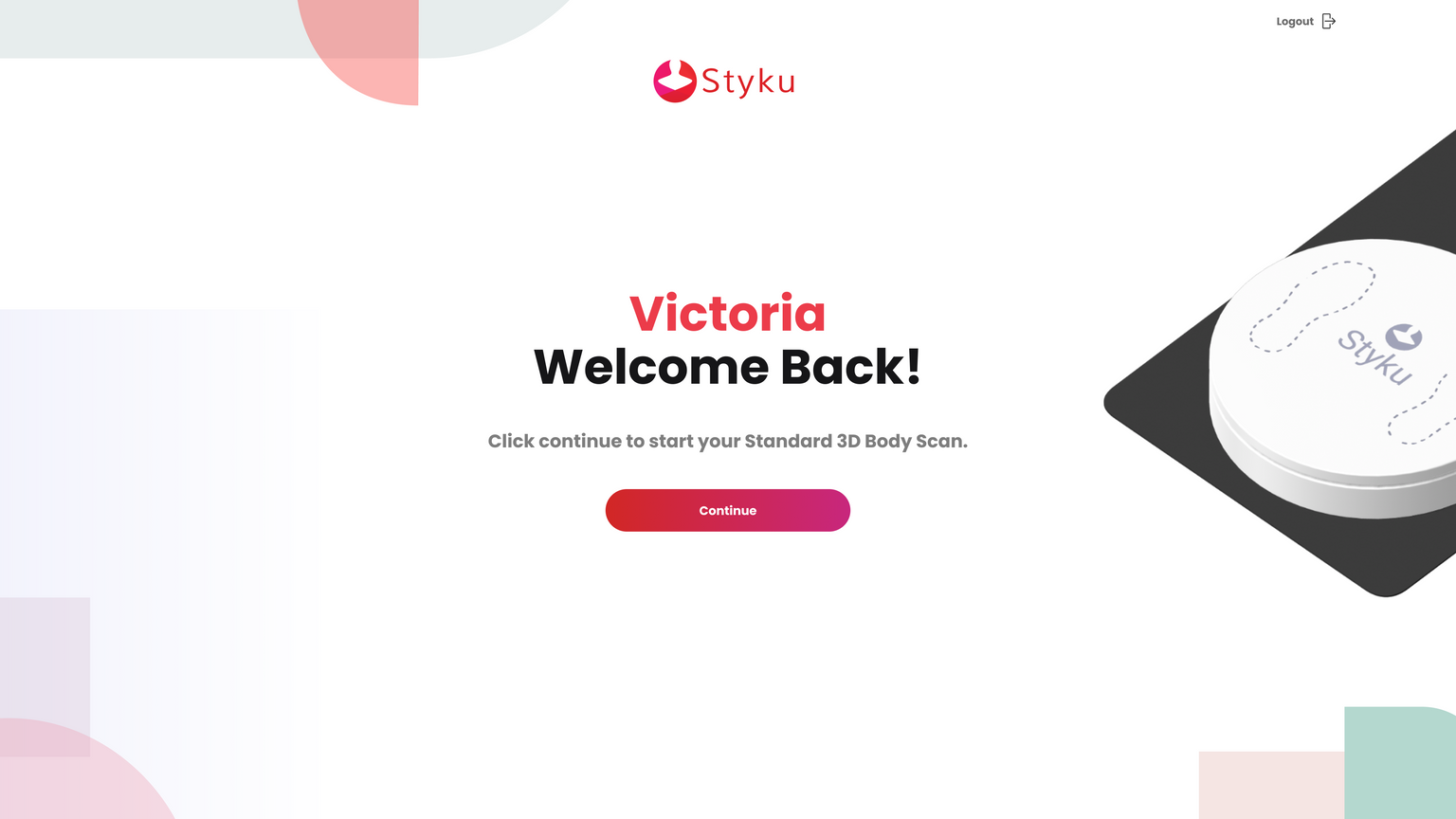
Select Continue on welcome screen

https://2640795.fs1.hubspotusercontent-na1.net/hubfs/2640795/undefined-4.png
https://2640795.fs1.hubspotusercontent-na1.net/hubfs/2640795/undefined-Jan-21-2026-11-39-59-2942-PM.png

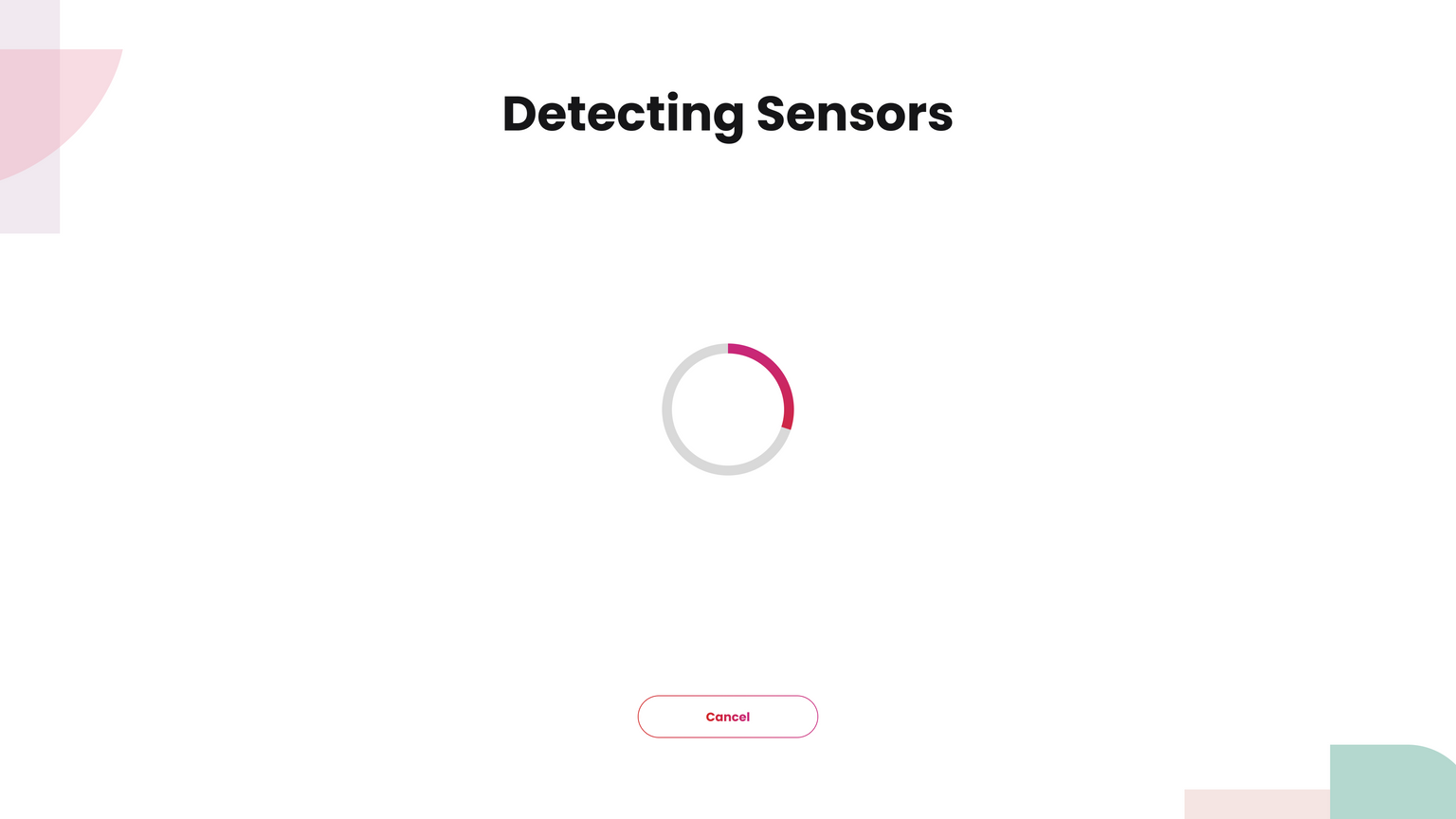
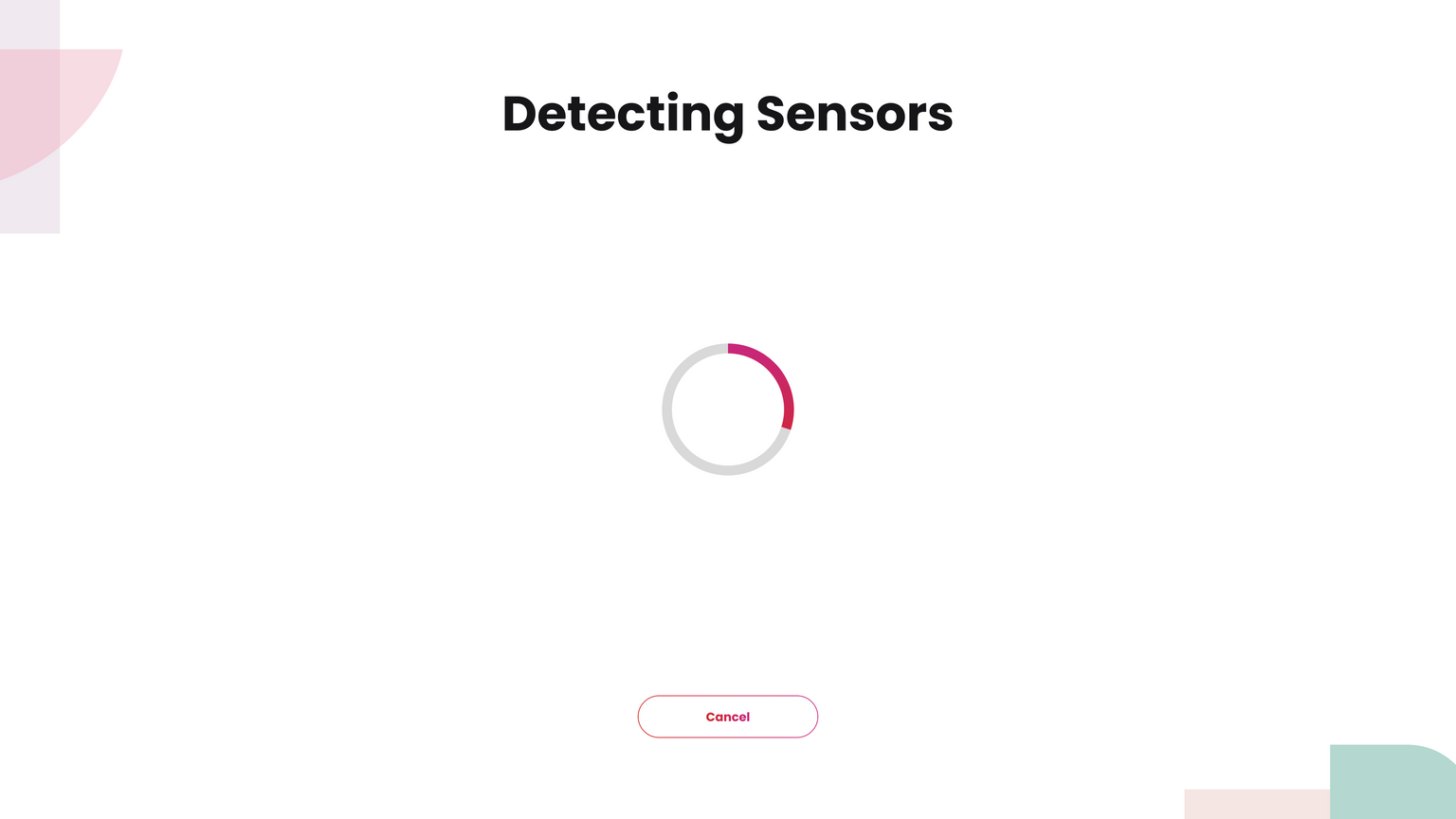
System checks sensor + turntable
https://2640795.fs1.hubspotusercontent-na1.net/hubfs/2640795/undefined-Jan-21-2026-11-40-16-4474-PM.png

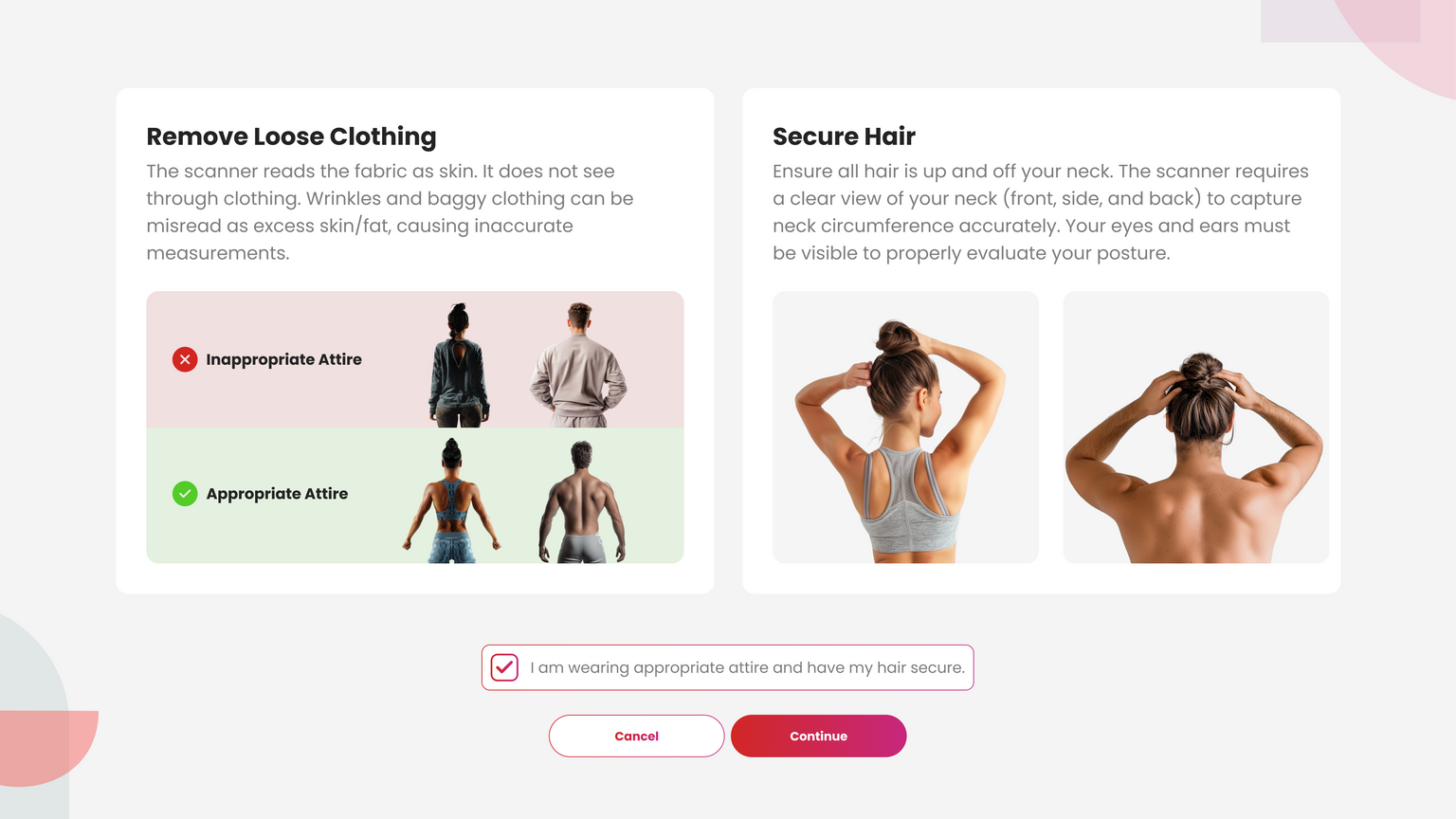
Confirm proper scan attire

https://2640795.fs1.hubspotusercontent-na1.net/hubfs/2640795/undefined-Jan-21-2026-11-42-27-4668-PM.png

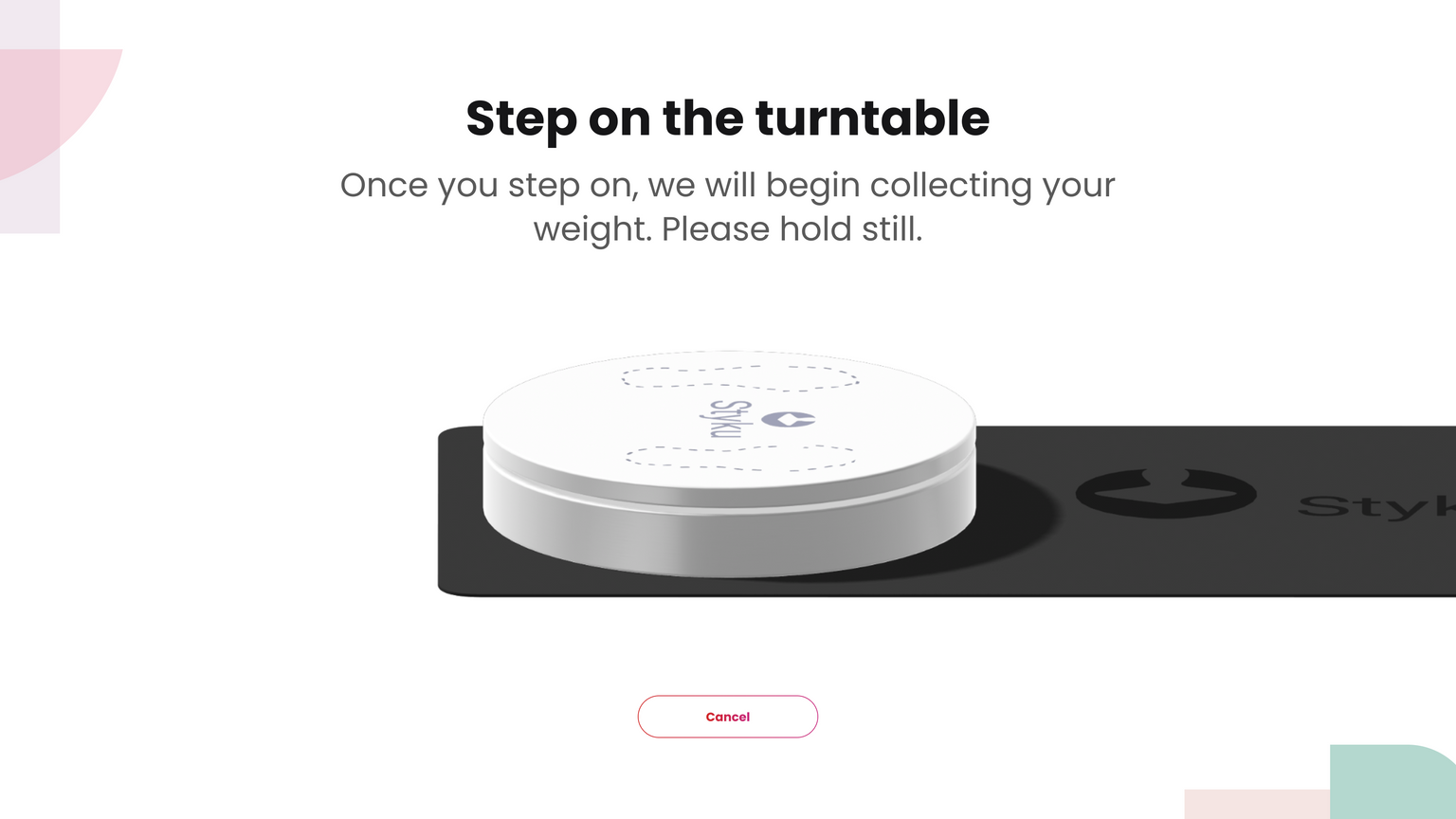
Client steps onto turntable for weight
https://2640795.fs1.hubspotusercontent-na1.net/hubfs/2640795/undefined-Jan-21-2026-11-43-00-6641-PM.png

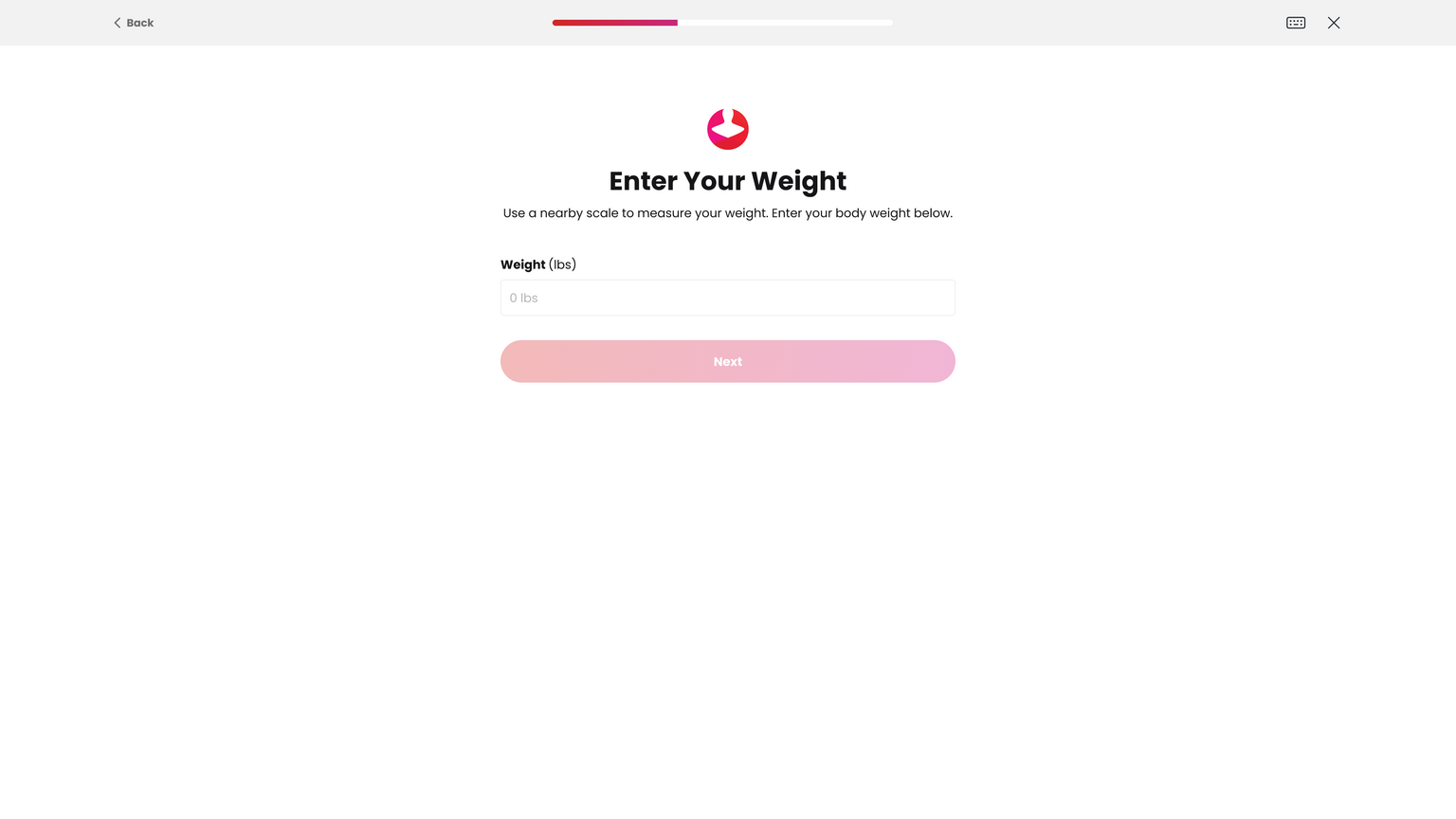
If weight not detected → Enter weight manually
https://2640795.fs1.hubspotusercontent-na1.net/hubfs/2640795/undefined-Jan-21-2026-11-43-25-7805-PM.png

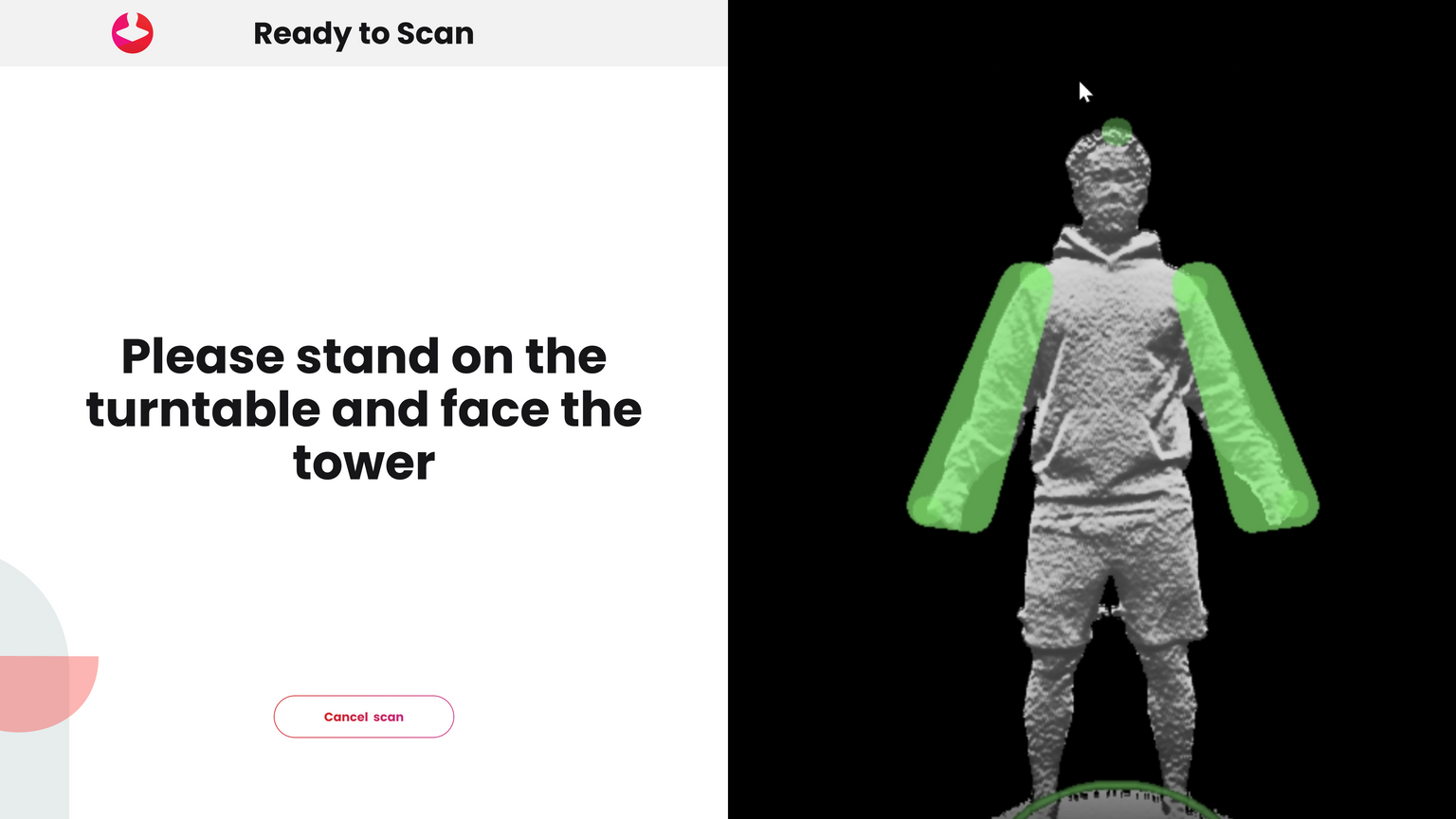
Assume A-pose

Align until pose frames turn green
https://2640795.fs1.hubspotusercontent-na1.net/hubfs/2640795/undefined-Jan-21-2026-11-43-50-4513-PM.png

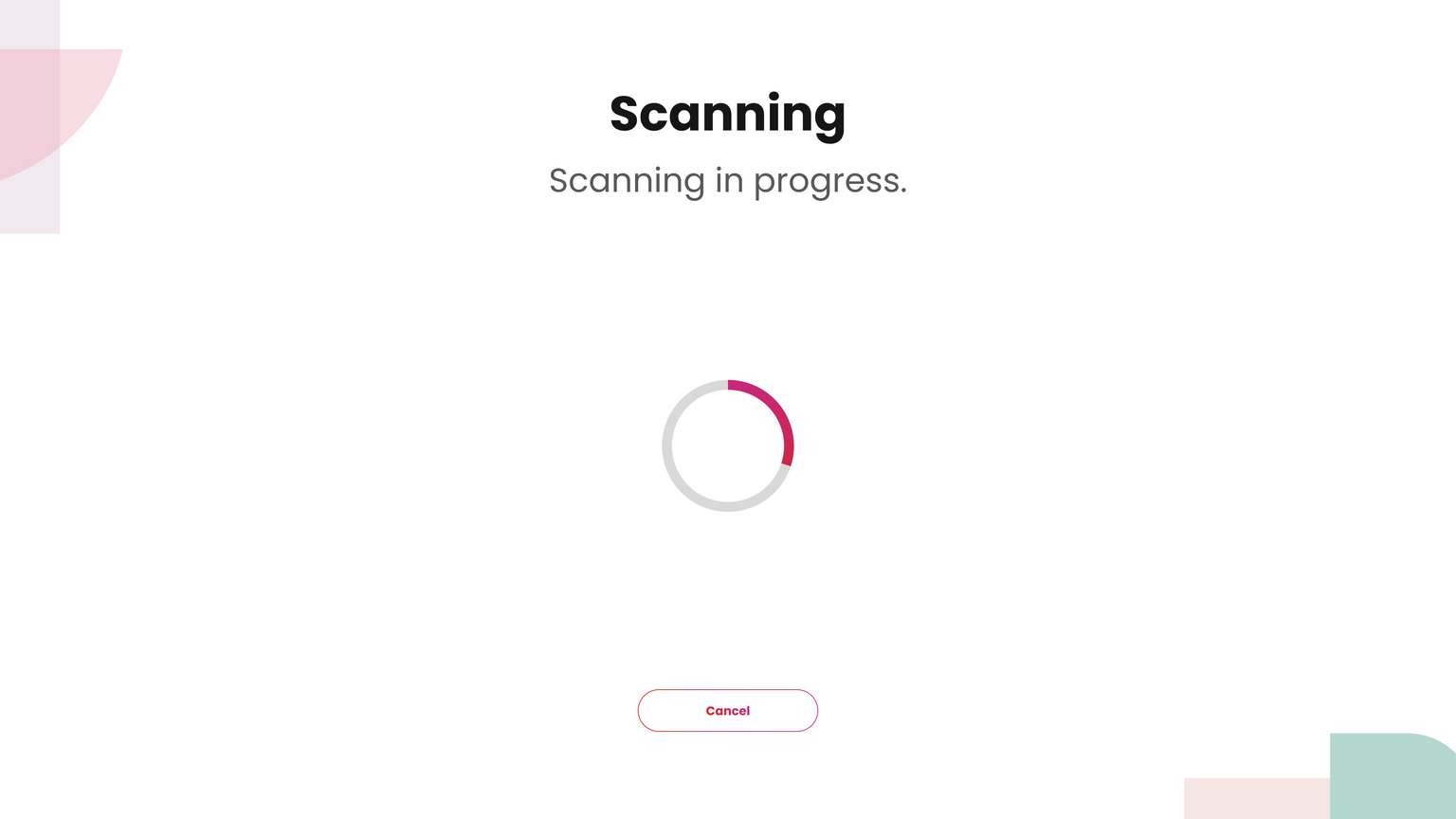
Scan begins

Remain still while spinning
https://2640795.fs1.hubspotusercontent-na1.net/hubfs/2640795/undefined-Jan-21-2026-11-44-17-9710-PM.png

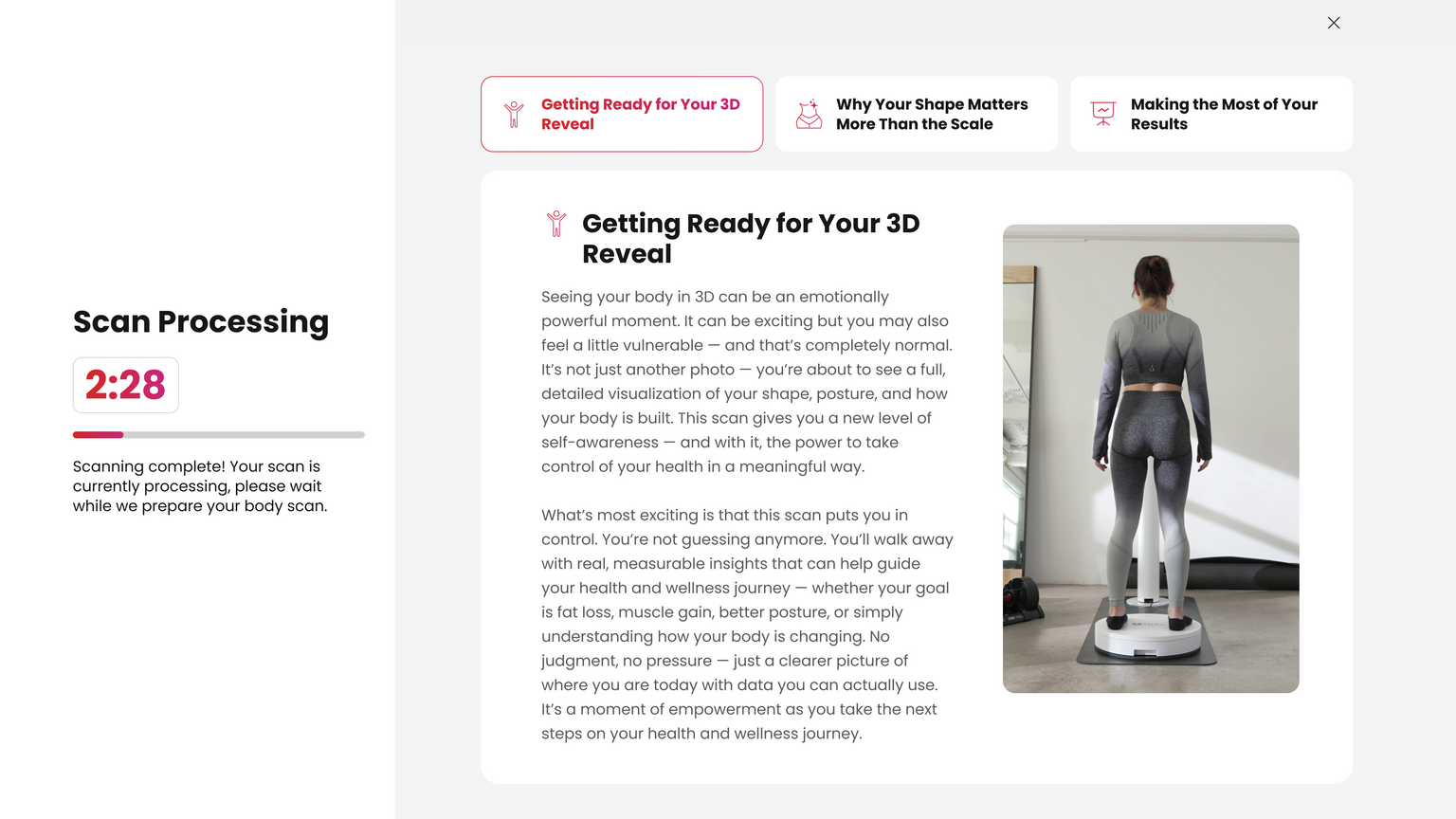
Scan processing and measuring

Remain in scan attire
https://2640795.fs1.hubspotusercontent-na1.net/hubfs/2640795/undefined-Jan-21-2026-11-47-44-1171-PM.png

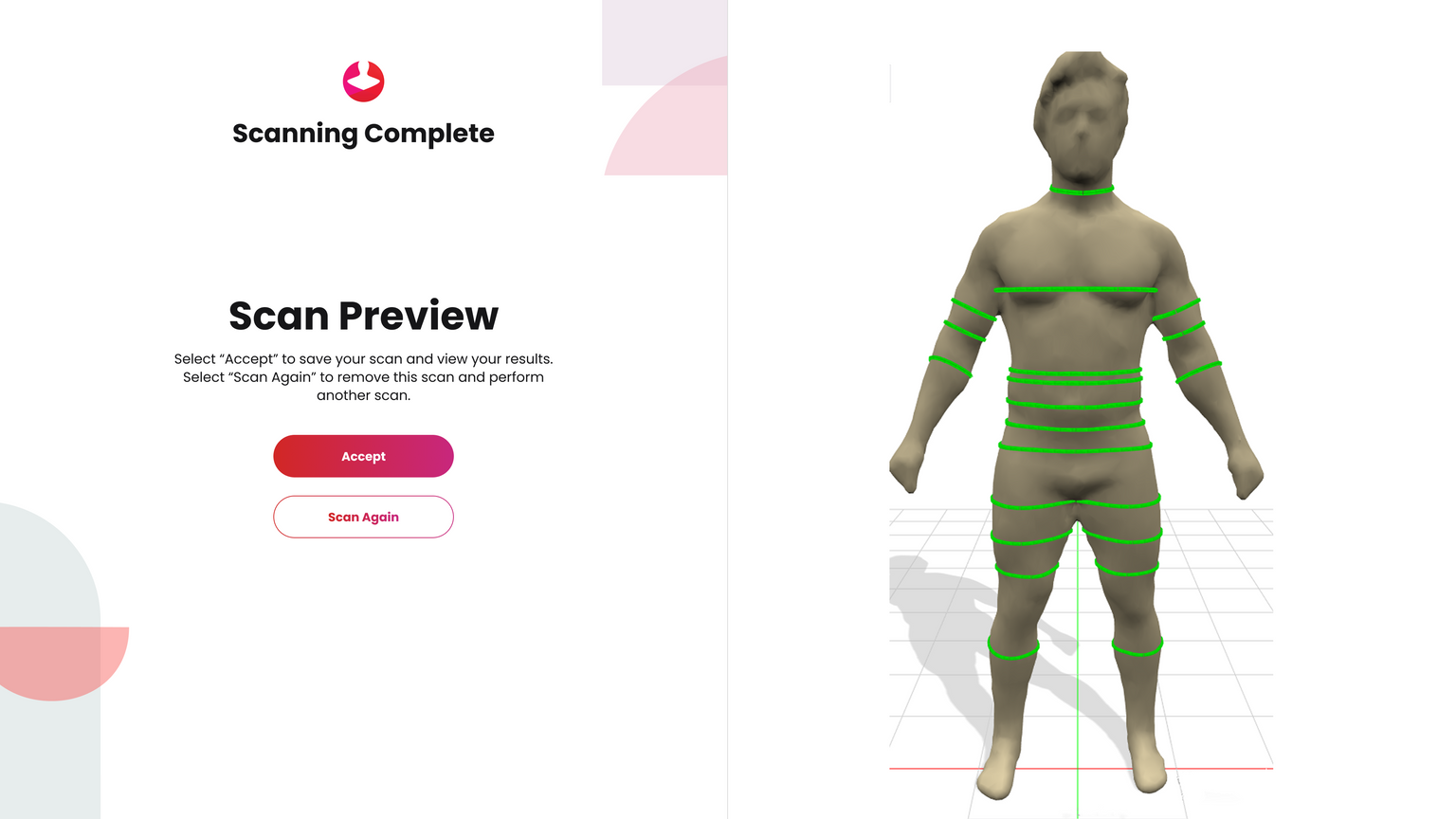
Review scan

Accept or Scan Again

Scan Again deletes the scan and restarts the process

Predicted measurements → Rescan recommended unless scan looks acceptable
https://2640795.fs1.hubspotusercontent-na1.net/hubfs/2640795/undefined-Jan-21-2026-11-48-17-3486-PM.png

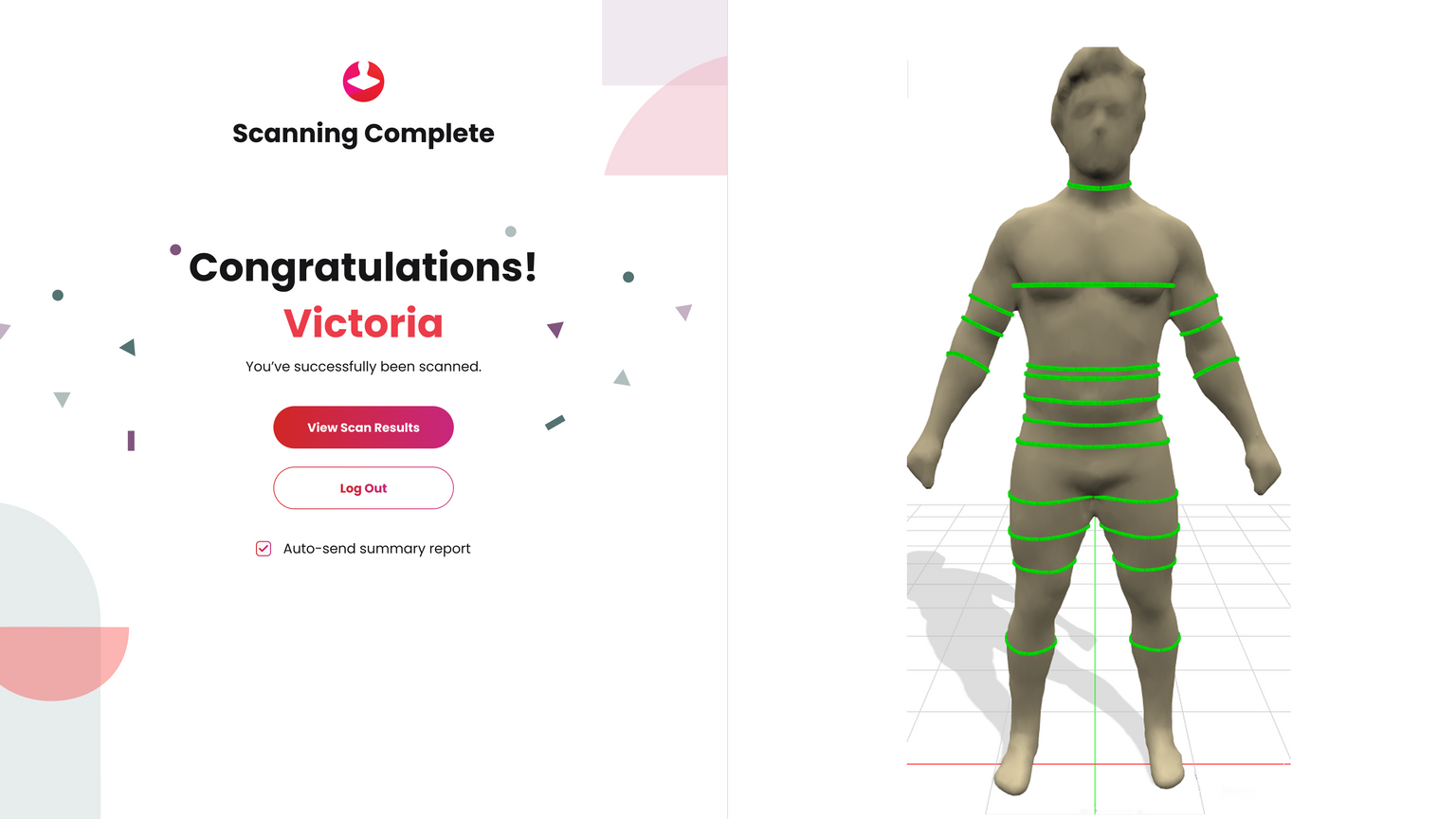
Scan accepted

Client may review results in the software or log out
https://2640795.fs1.hubspotusercontent-na1.net/hubfs/2640795/undefined-Jan-21-2026-11-48-38-3199-PM.png

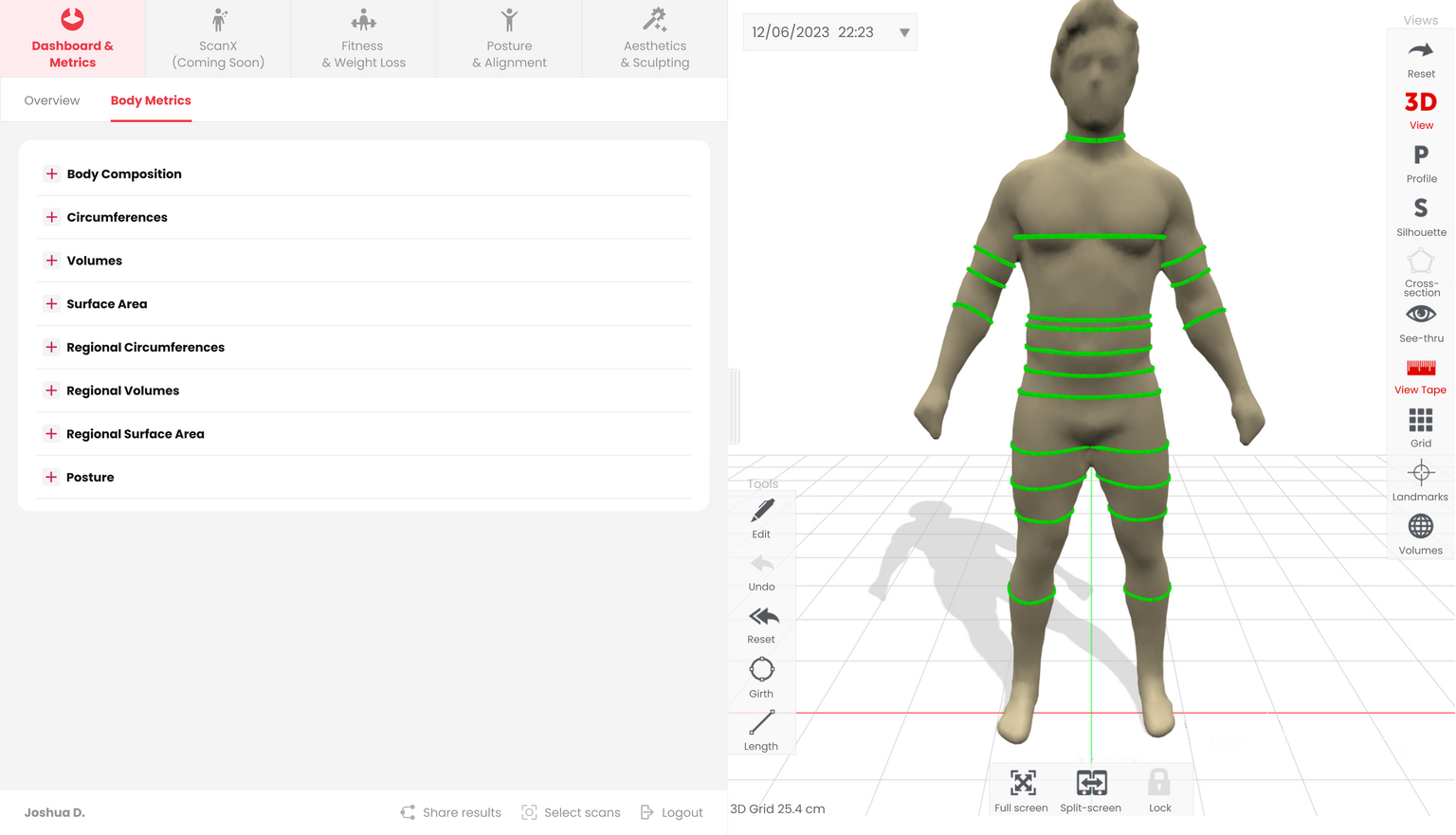
Tap Select Scans in bottom navigation

Choose scans to load into analysis
https://2640795.fs1.hubspotusercontent-na1.net/hubfs/2640795/undefined-Jan-21-2026-11-49-06-6689-PM.png

Scan Steps

Select Option 2: Login and scan with your email address

Client enters email address
https://2640795.fs1.hubspotusercontent-na1.net/hubfs/2640795/undefined-Jan-21-2026-11-49-36-1621-PM.png

New client → Create profile

https://2640795.fs1.hubspotusercontent-na1.net/hubfs/2640795/undefined-Jan-21-2026-11-49-59-9819-PM.png https://2640795.fs1.hubspotusercontent-na1.net/hubfs/2640795/undefined-Jan-21-2026-11-53-39-6975-PM.png
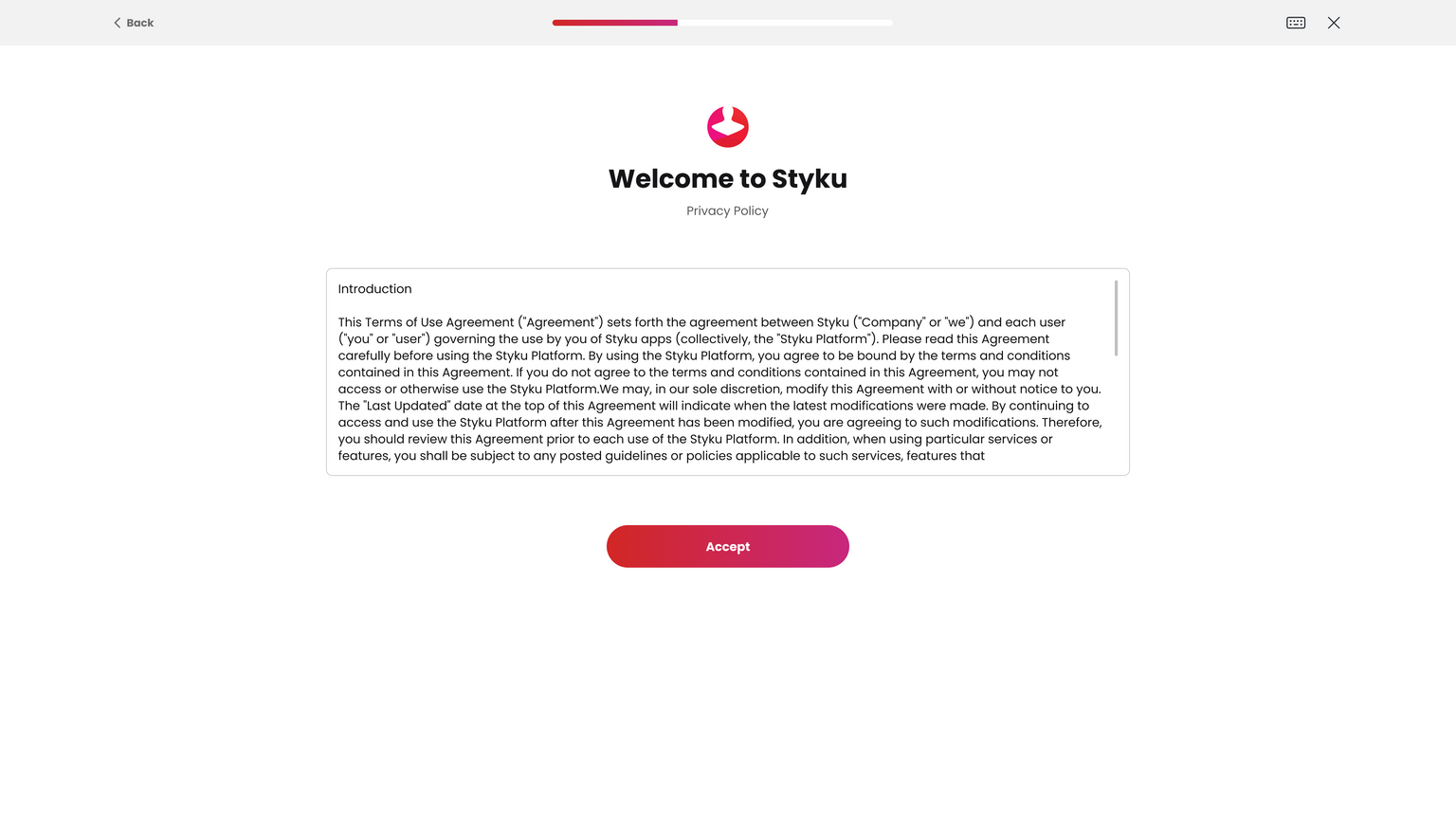
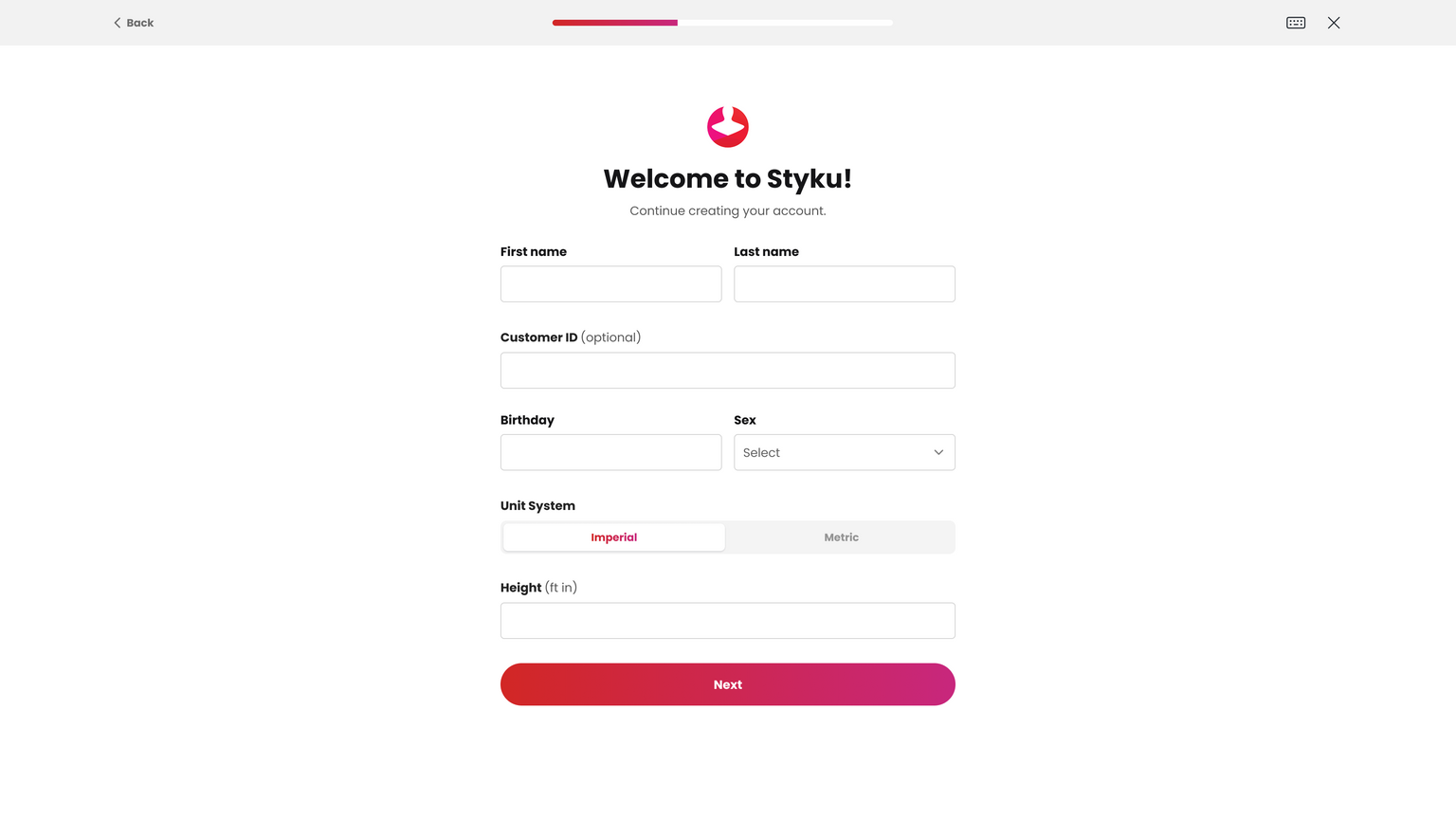
Returning client (this location) → Profile found
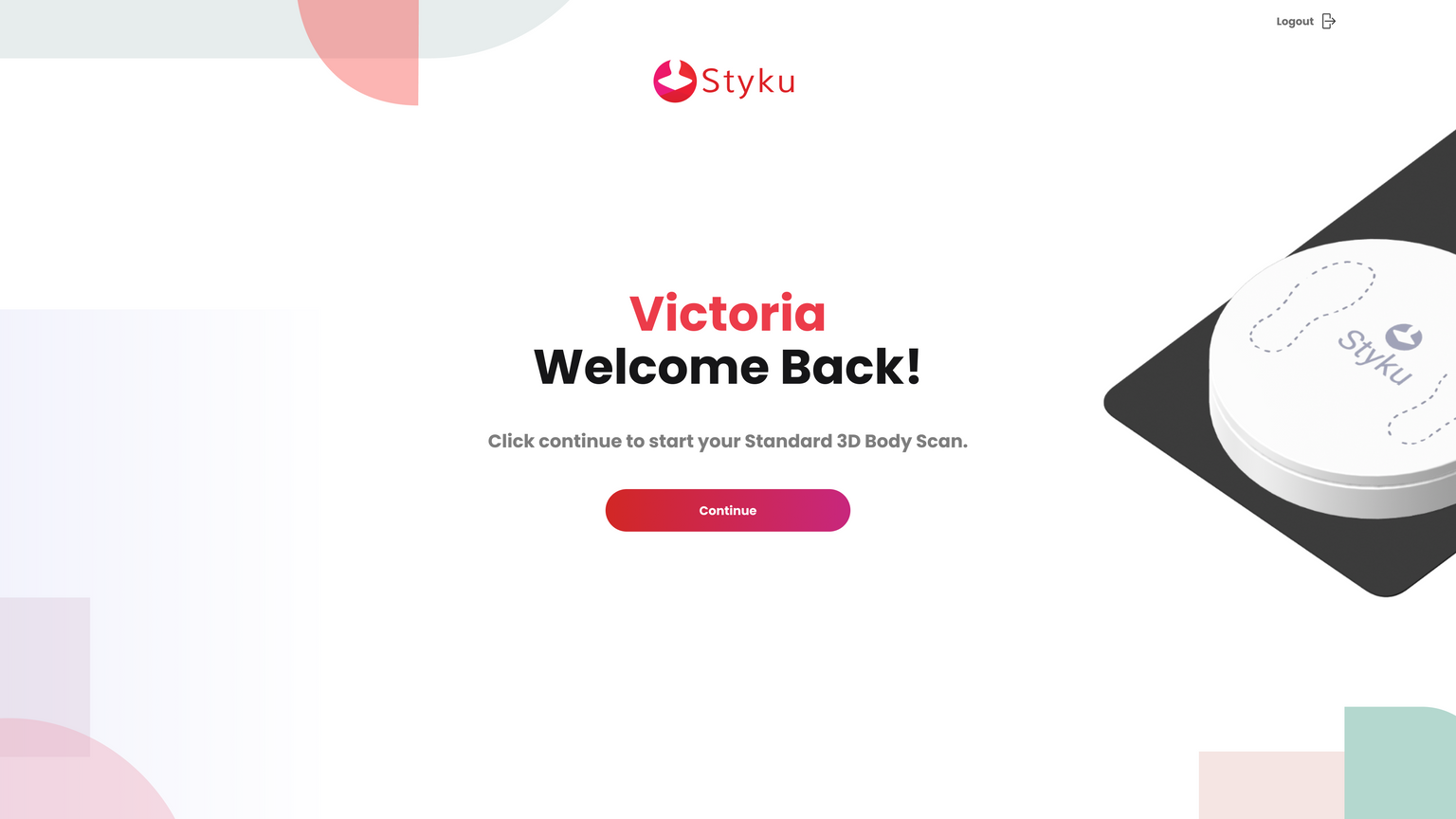
https://2640795.fs1.hubspotusercontent-na1.net/hubfs/2640795/undefined-Jan-21-2026-11-54-31-2690-PM.png

Verified mobile app user → Enter one-time verification code
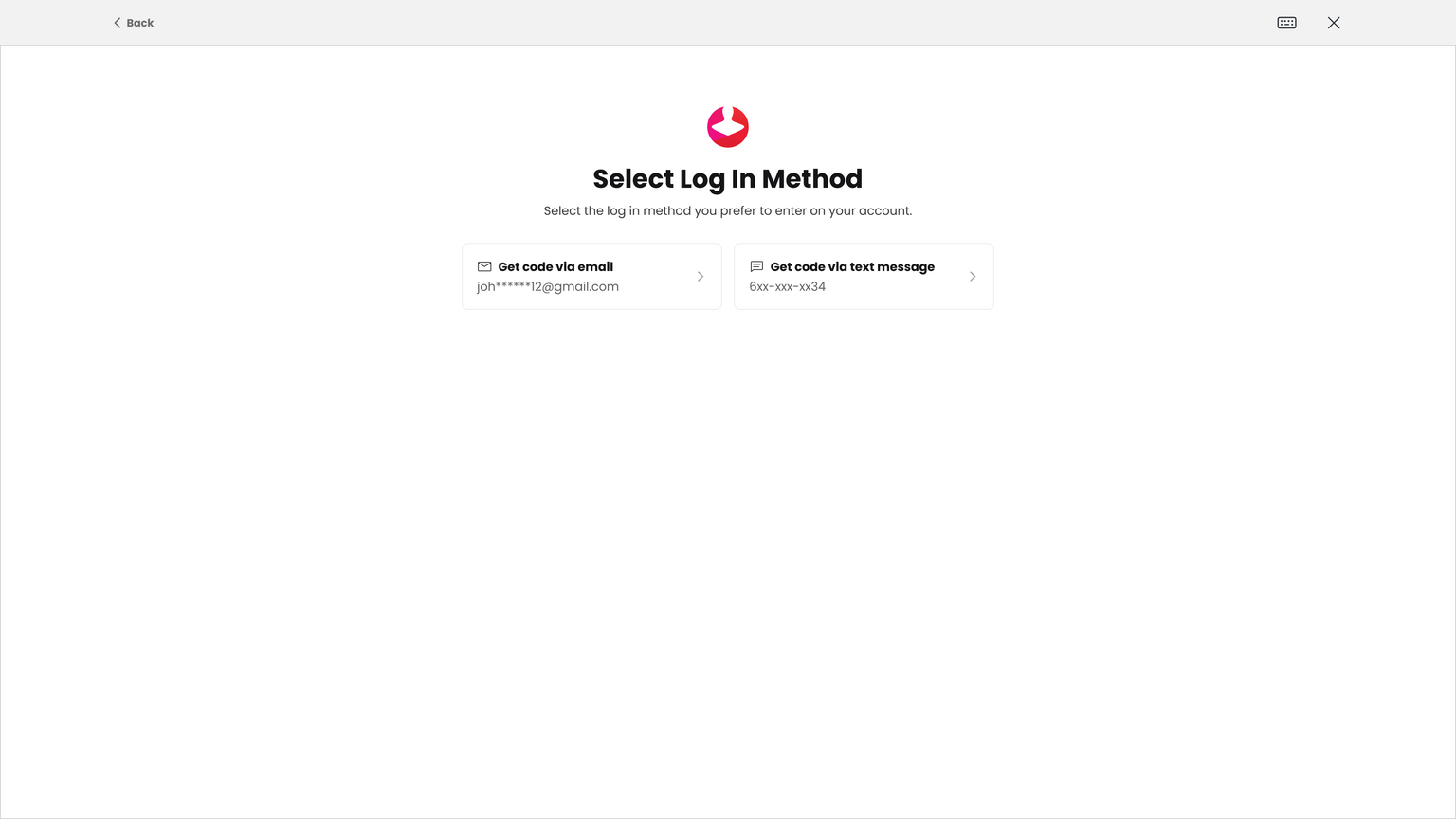
https://2640795.fs1.hubspotusercontent-na1.net/hubfs/2640795/undefined-Jan-21-2026-11-55-03-0680-PM.png

System checks sensor + turntable

https://2640795.fs1.hubspotusercontent-na1.net/hubfs/2640795/undefined-Jan-21-2026-11-55-26-9896-PM.png

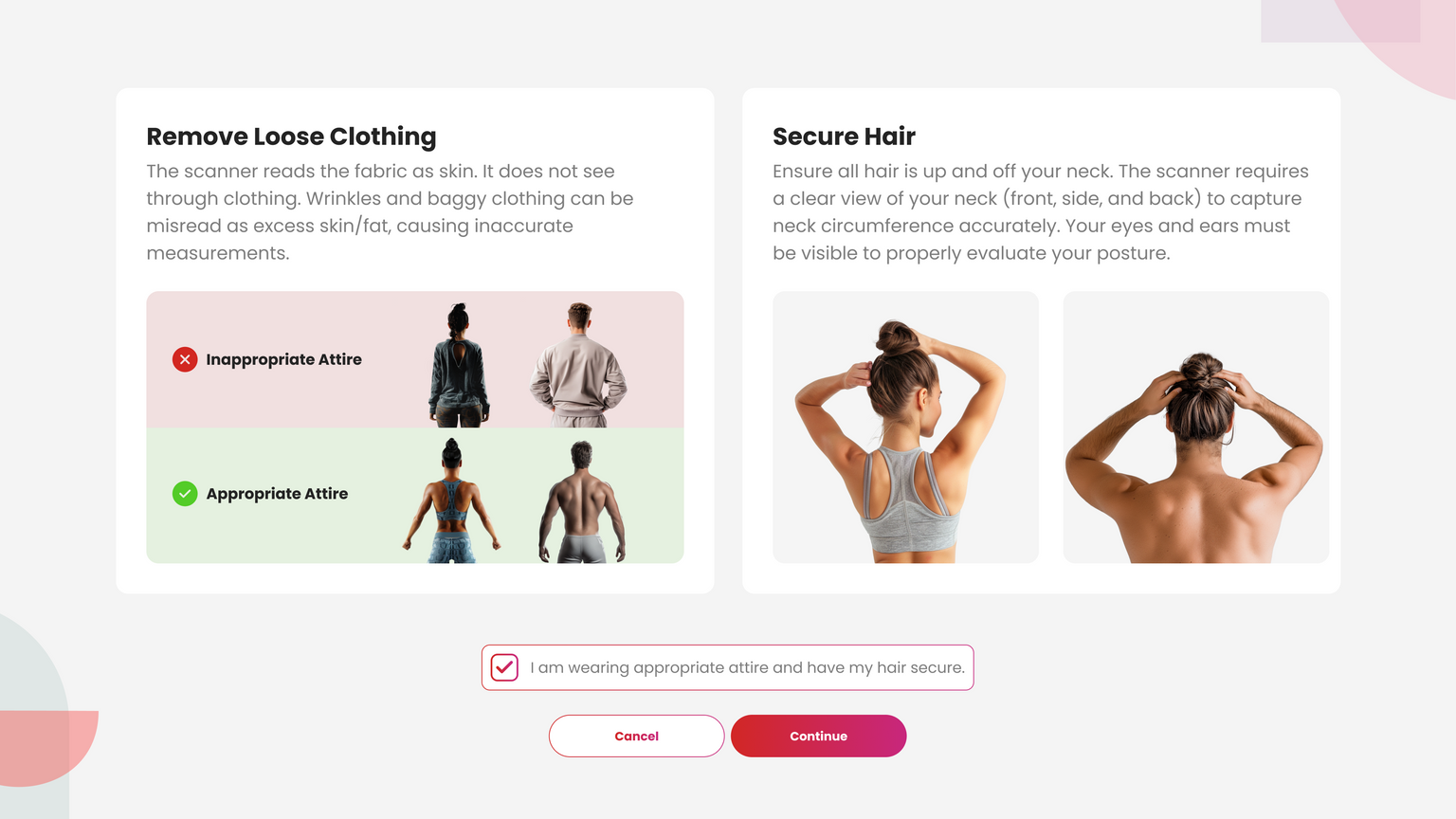
Confirm proper scan attire

https://2640795.fs1.hubspotusercontent-na1.net/hubfs/2640795/undefined-Jan-21-2026-11-56-25-7575-PM.png

Client steps onto turntable for weight
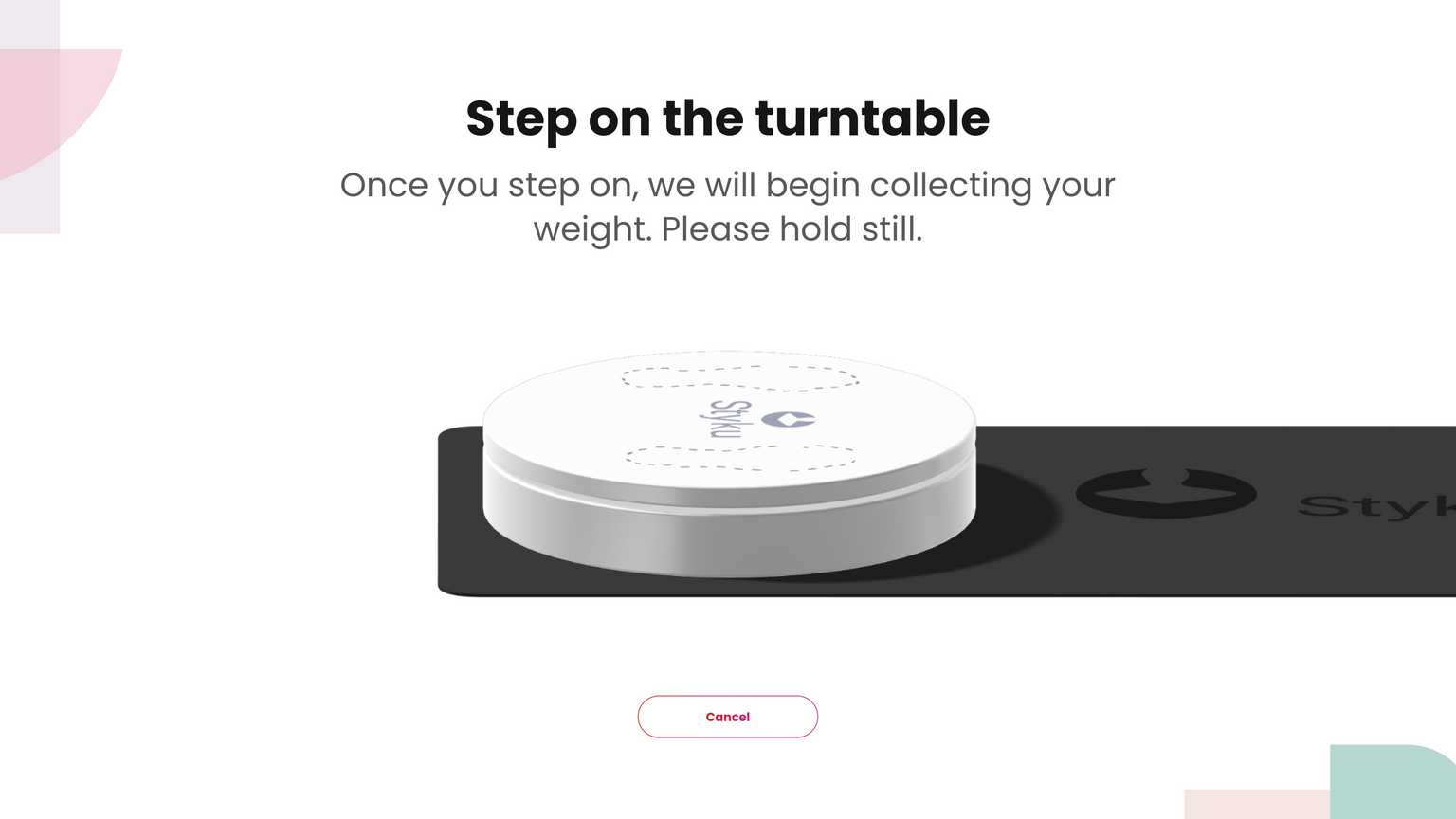
https://2640795.fs1.hubspotusercontent-na1.net/hubfs/2640795/undefined-Jan-21-2026-11-56-47-1611-PM.png

If weight not detected → Enter weight manually
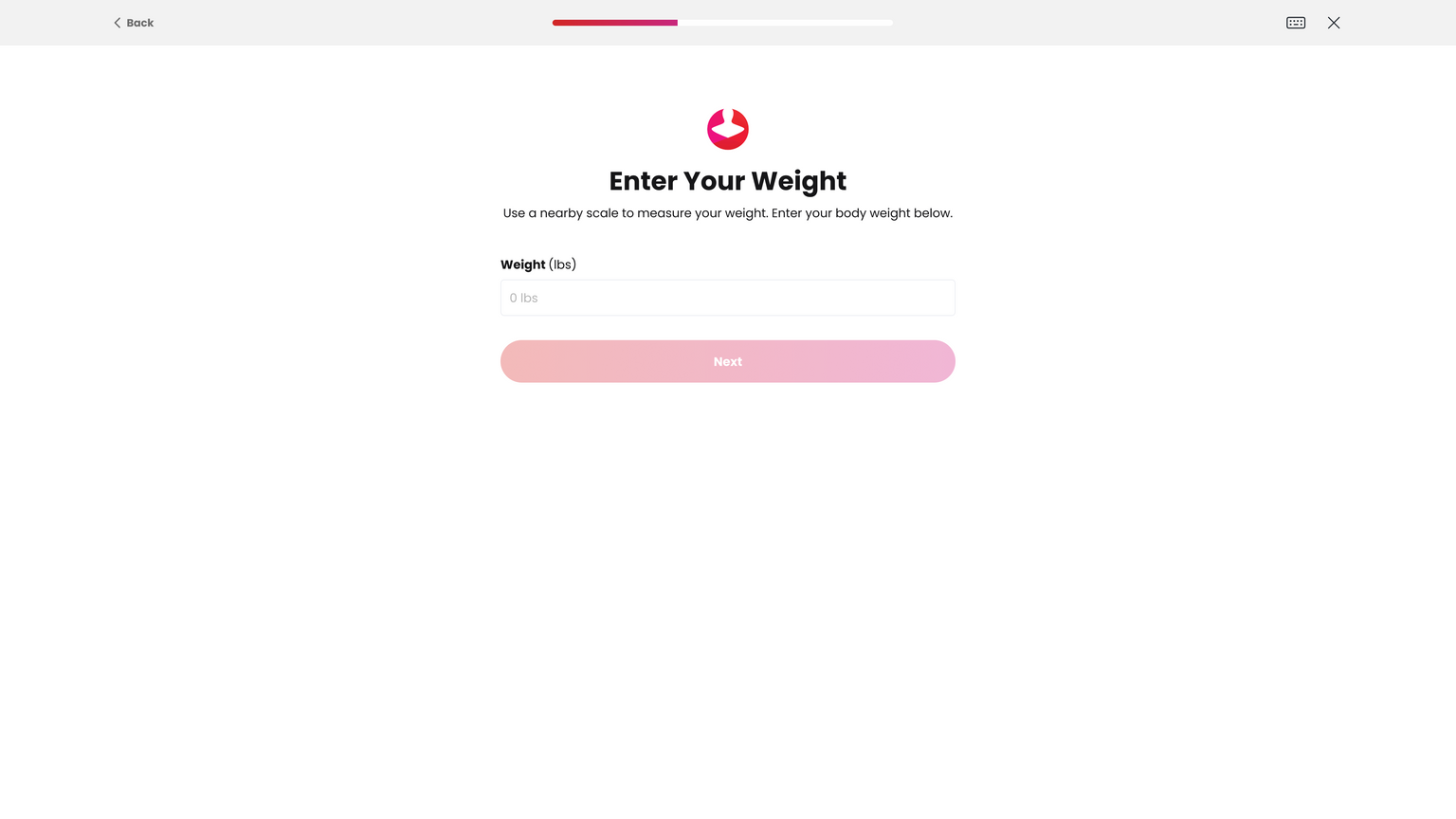
https://2640795.fs1.hubspotusercontent-na1.net/hubfs/2640795/undefined-Jan-21-2026-11-57-10-3291-PM.png

Assume A-pose

Align until pose frames turn green
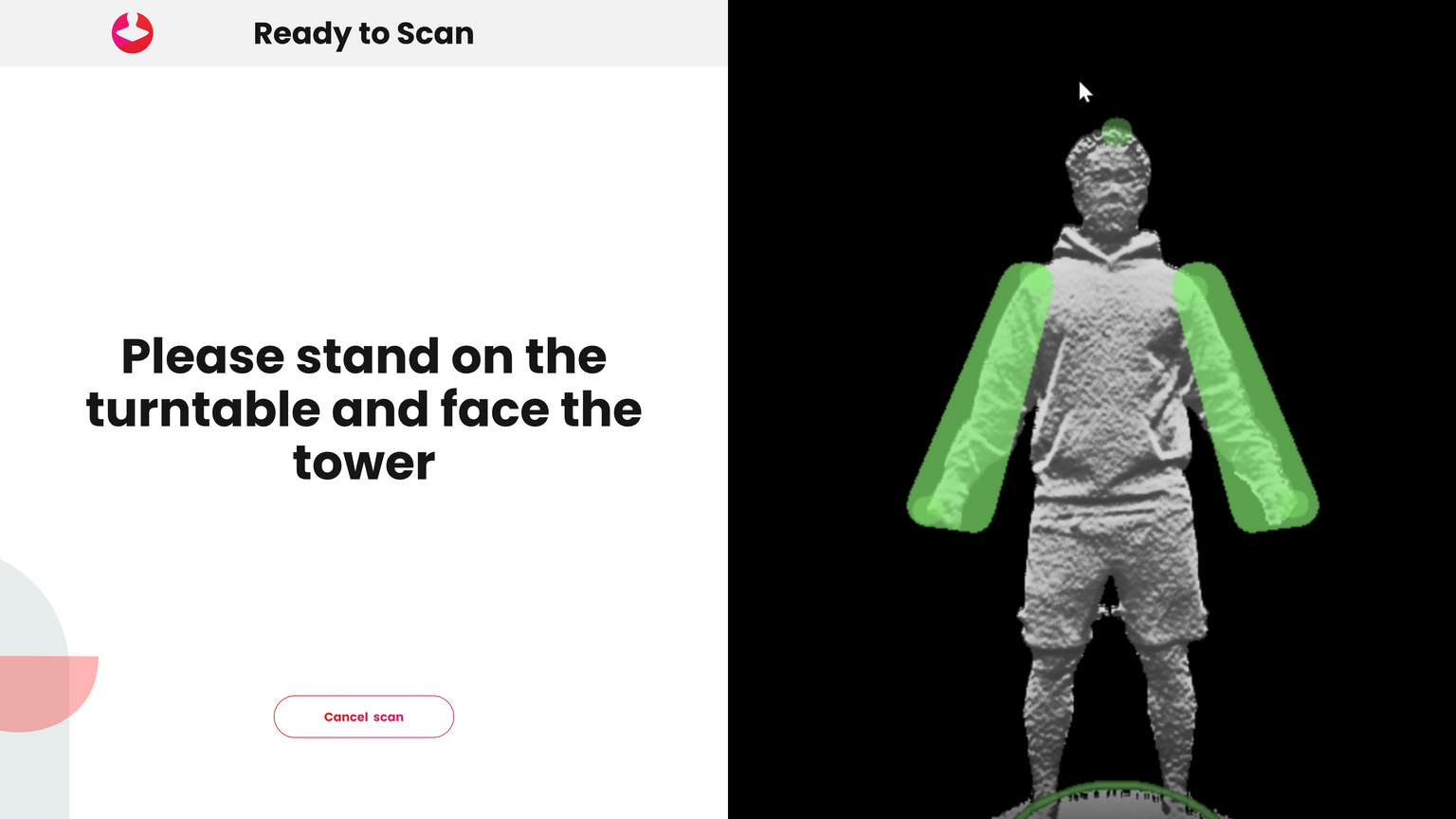
https://2640795.fs1.hubspotusercontent-na1.net/hubfs/2640795/undefined-Jan-21-2026-11-57-52-1247-PM.png

Scan begins

Remain still while spinning
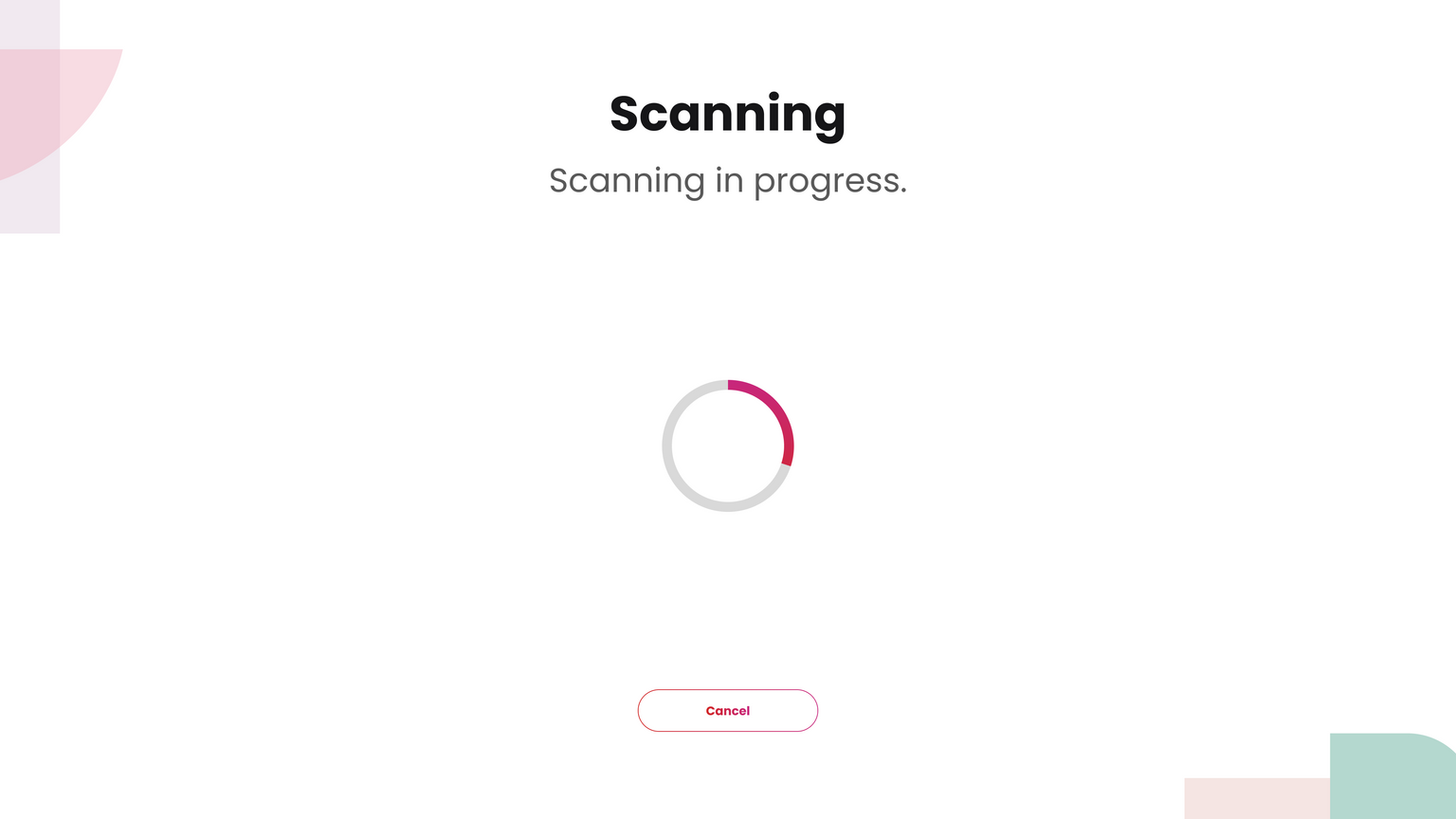
https://2640795.fs1.hubspotusercontent-na1.net/hubfs/2640795/undefined-Jan-21-2026-11-58-16-3359-PM.png

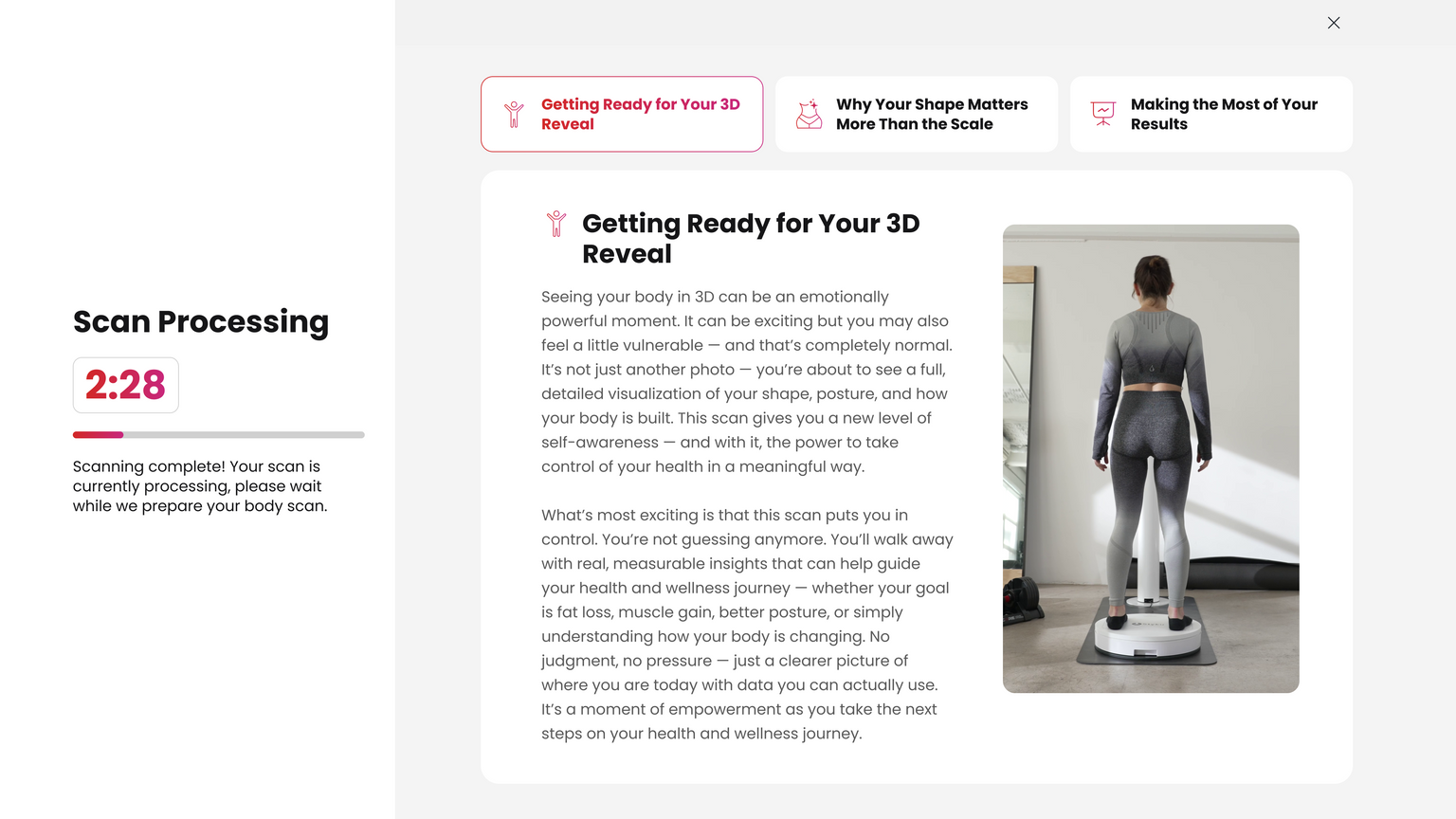
Scan processing and measuring

Remain in scan attire
https://2640795.fs1.hubspotusercontent-na1.net/hubfs/2640795/undefined-Jan-21-2026-11-58-36-5935-PM.png

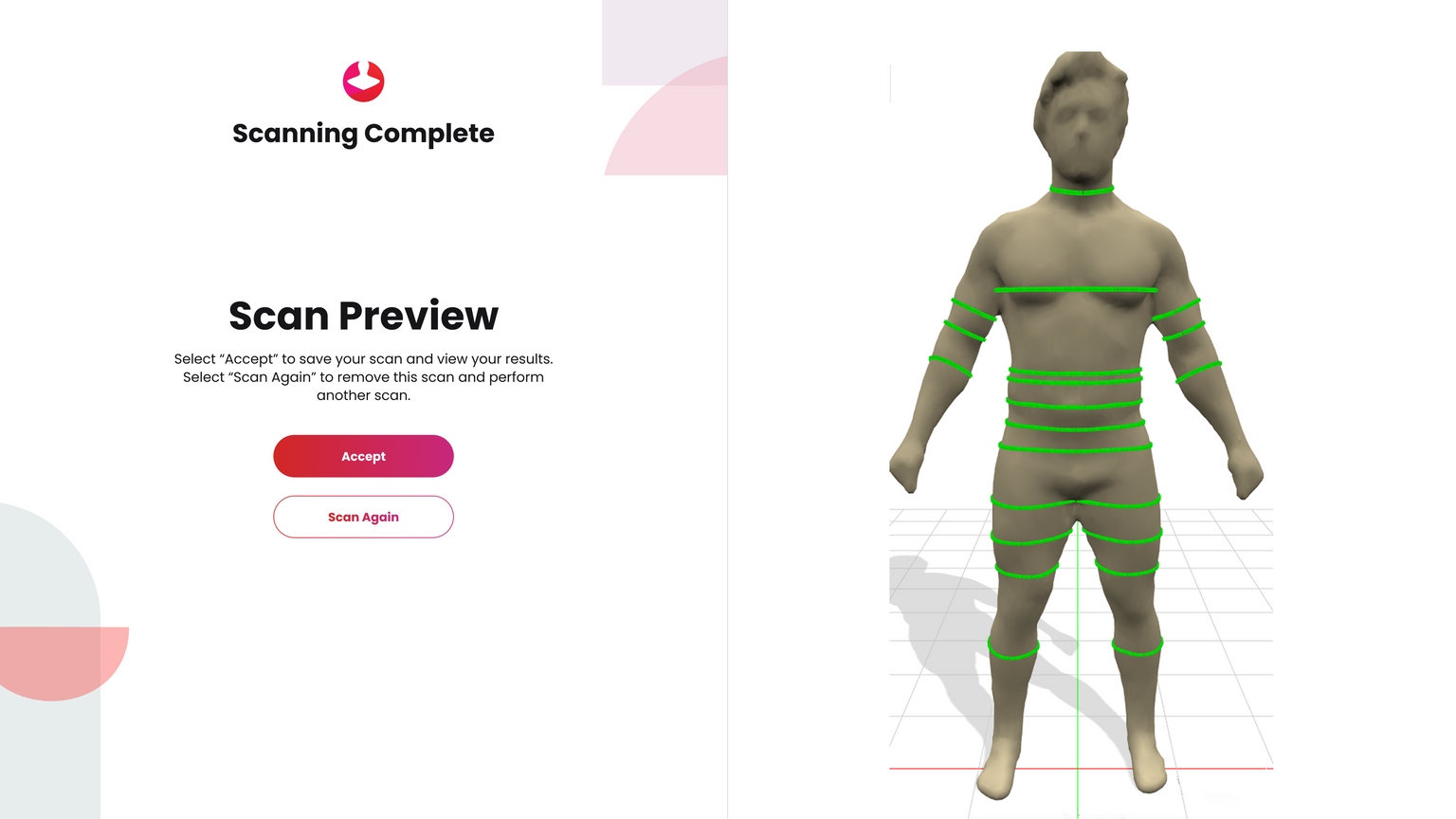
Review scan

Accept or Scan Again


Scan Again deletes the scan and restarts the process

Predicted measurements → Rescan recommended unless scan looks acceptable
https://2640795.fs1.hubspotusercontent-na1.net/hubfs/2640795/undefined-Jan-21-2026-11-59-23-5071-PM.png

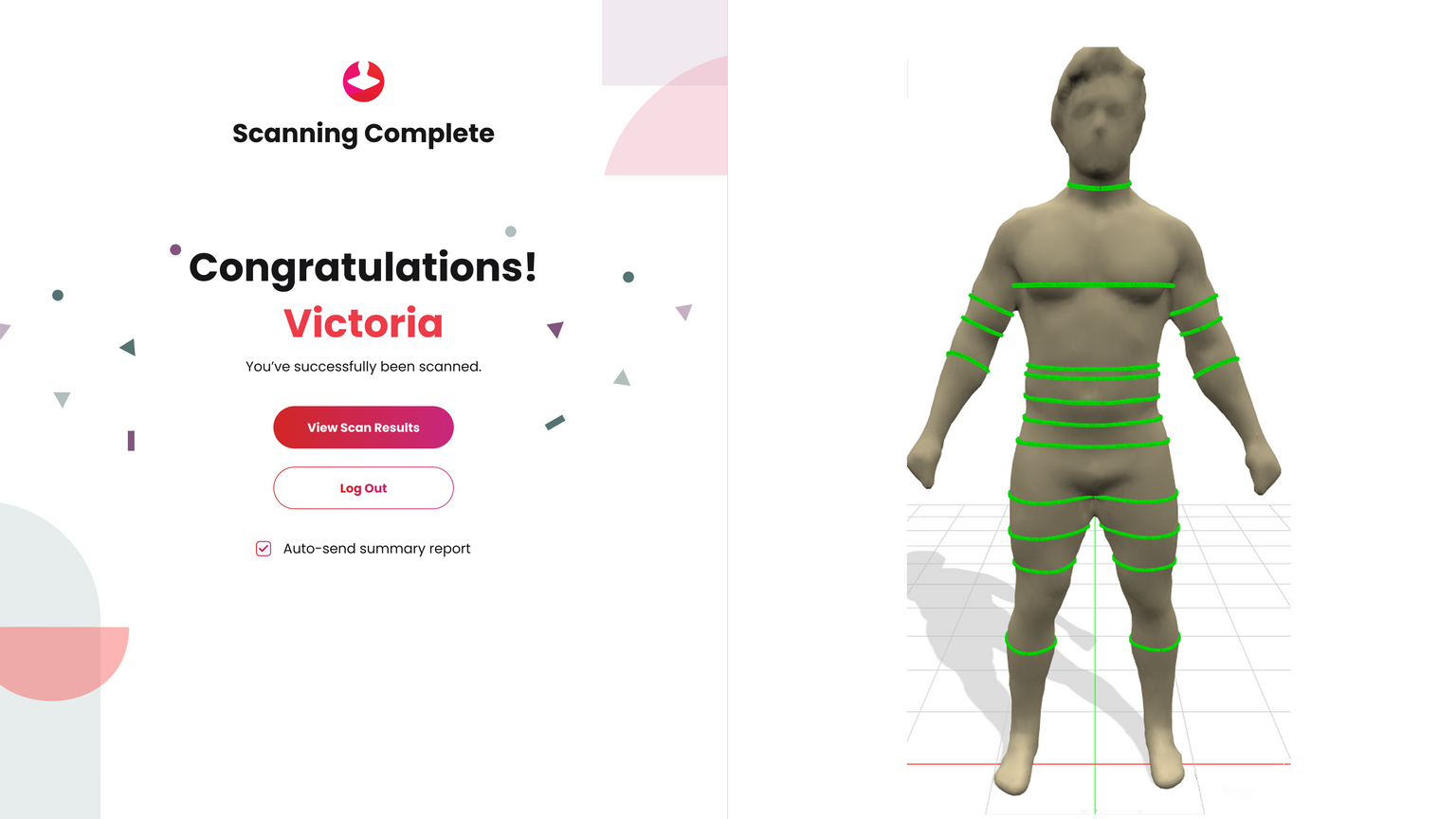
Scan accepted

Client may review results in the software or log out
https://2640795.fs1.hubspotusercontent-na1.net/hubfs/2640795/undefined-Jan-21-2026-11-59-43-1140-PM.png

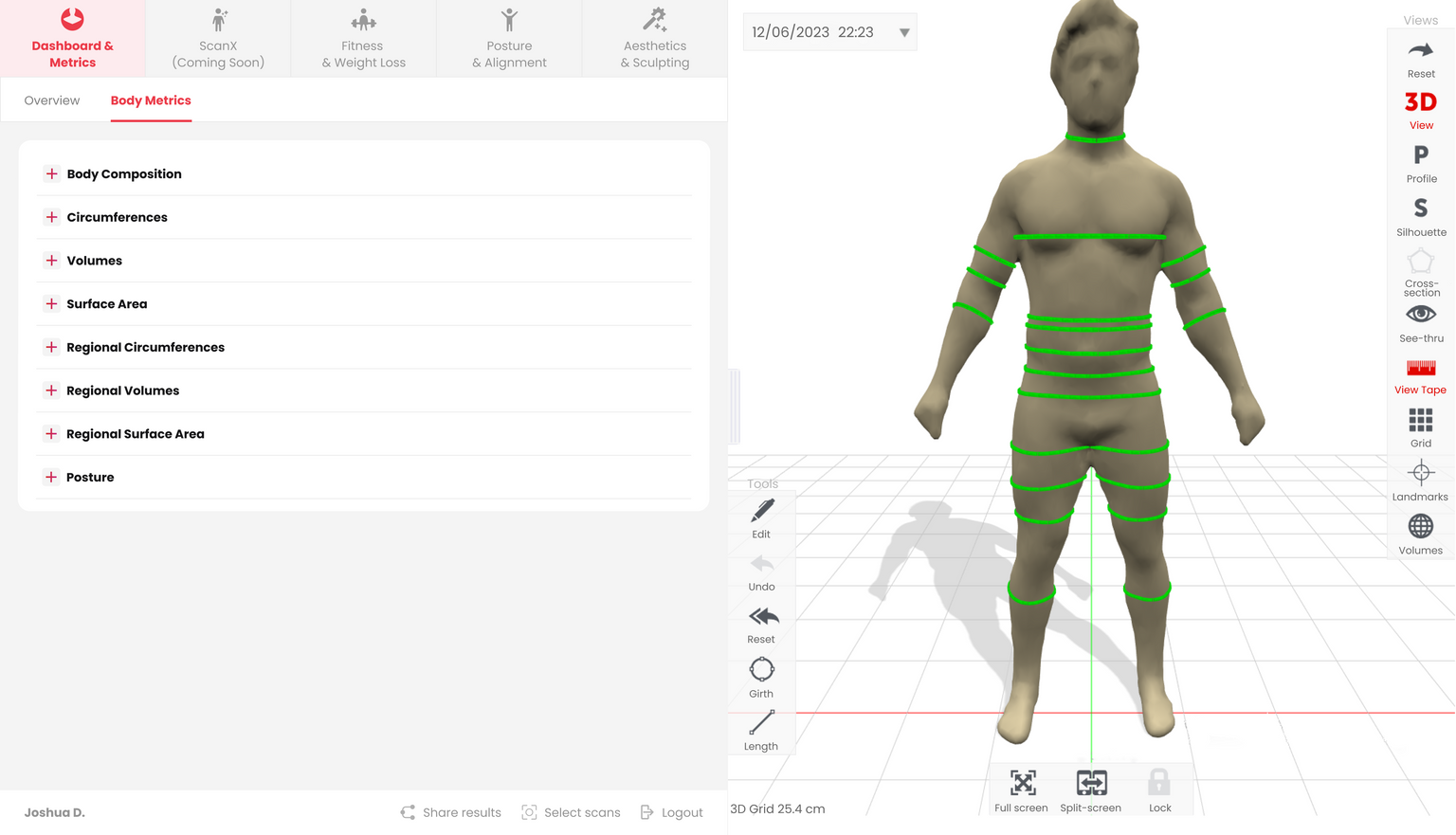
Tap Select Scans in bottom navigation

Choose scans to load into analysis
https://2640795.fs1.hubspotusercontent-na1.net/hubfs/2640795/undefined-Jan-22-2026-12-00-29-4402-AM.png

👤 View Profiles & Admin Settings (Admin Only)

Section titled “👤 View Profiles & Admin Settings (Admin Only)”

From home screen, tap View Profile Only

Enter Admin PIN
https://2640795.fs1.hubspotusercontent-na1.net/hubfs/2640795/undefined-Jan-22-2026-12-00-49-5021-AM.png

https://2640795.fs1.hubspotusercontent-na1.net/hubfs/2640795/undefined-Jan-22-2026-12-01-03-0920-AM.png

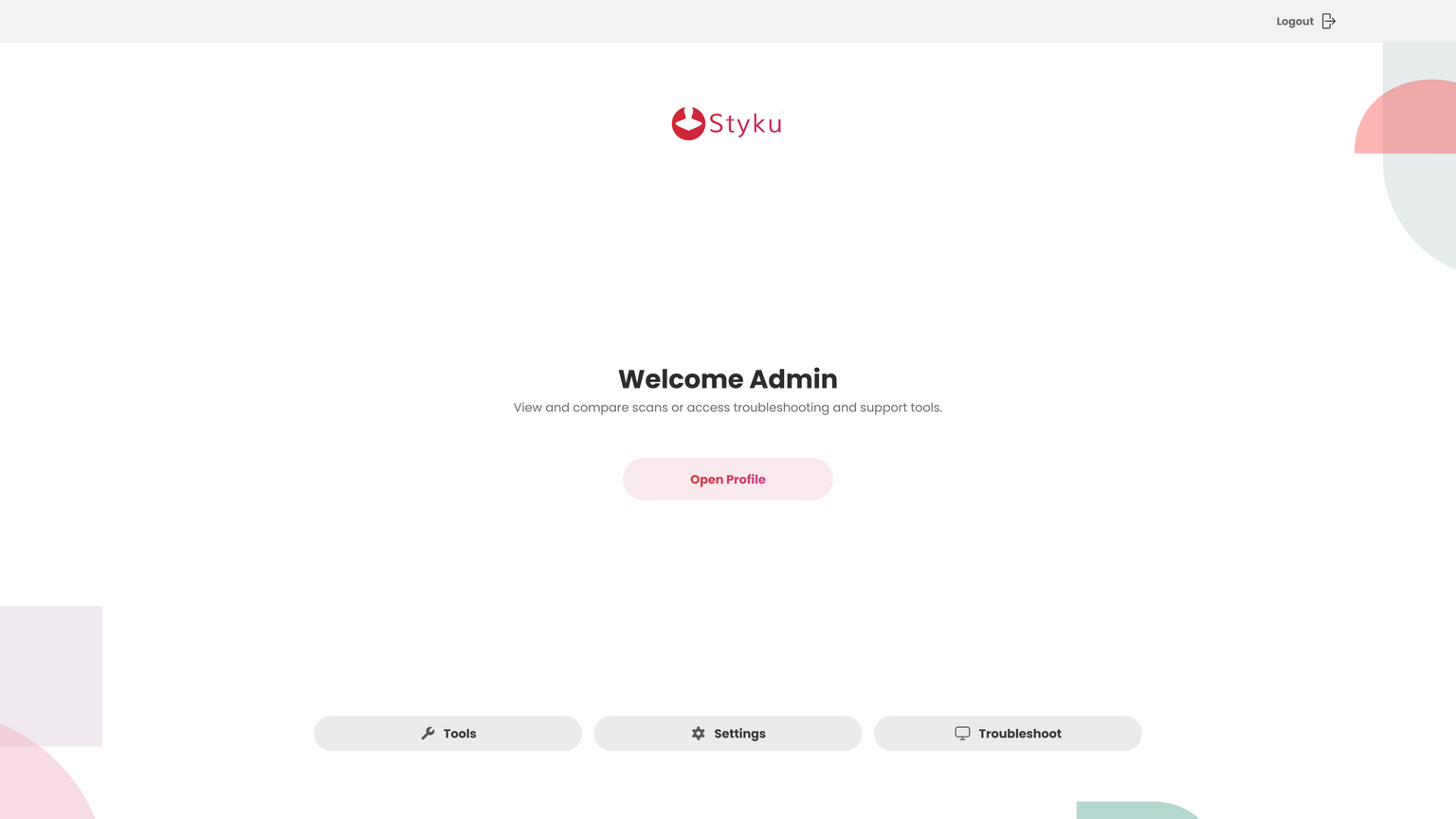
View client profiles and scans

Access settings, tools, and troubleshooting
https://2640795.fs1.hubspotusercontent-na1.net/hubfs/2640795/undefined-Jan-22-2026-12-01-53-5451-AM.png

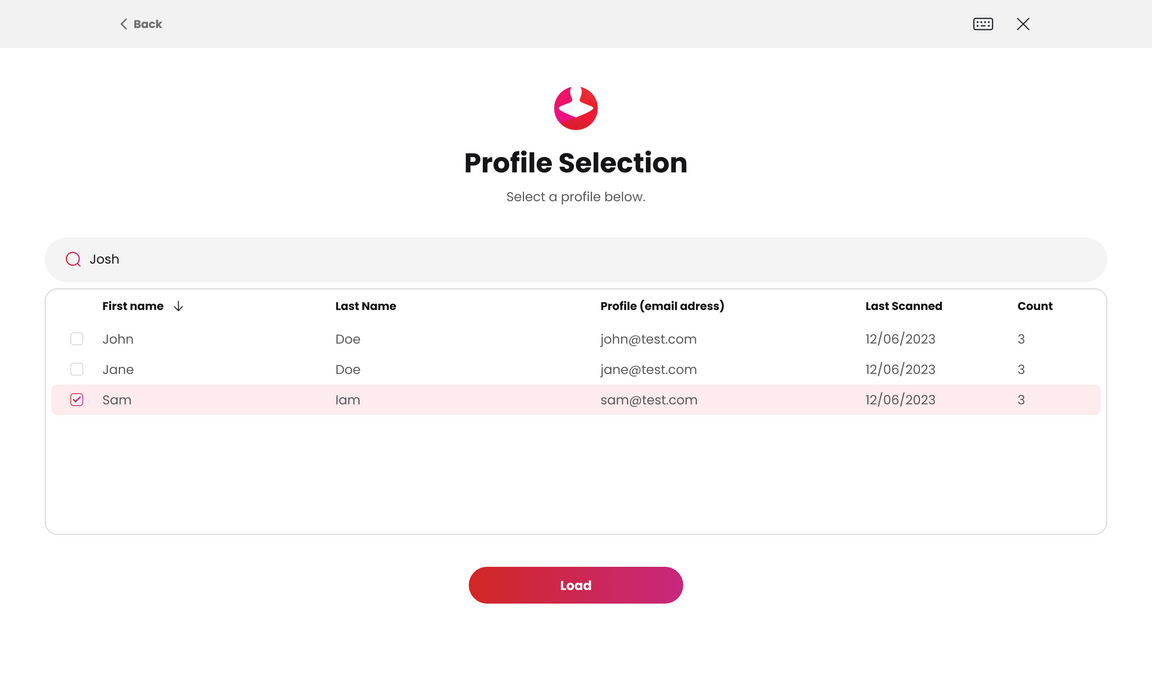
Select Open Profile

Search or select client from list
https://2640795.fs1.hubspotusercontent-na1.net/hubfs/2640795/undefined-Jan-22-2026-12-02-17-2381-AM.png

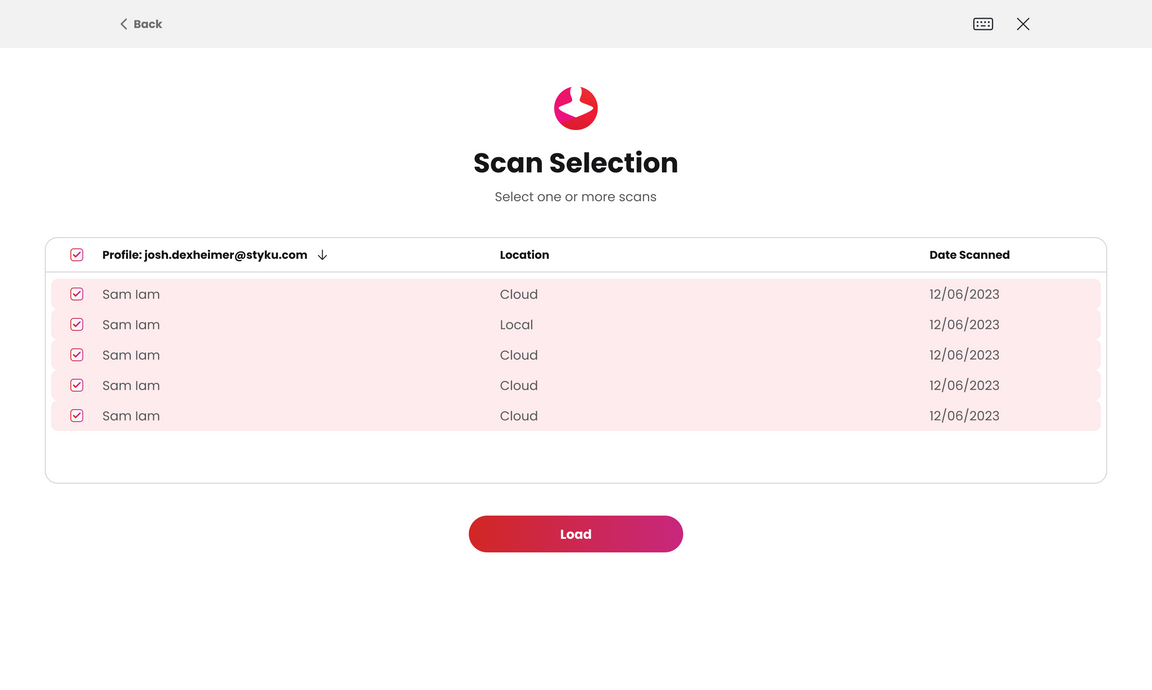
Select scans to compare

Scans load in analysis view
https://2640795.fs1.hubspotusercontent-na1.net/hubfs/2640795/undefined-Jan-22-2026-12-02-44-6248-AM.png


Still need help? Submit a service ticket in the Styku Business Portal.